A laptop with two ports and a power brick is a finished machine until the day it needs to talk to a monitor, a keyboard, a mouse, an external drive, and a wired network at the same time. That is the moment the shopping begins, and the search results arrive in two flavors: USB hubs, which cost less than lunch, and docking stations, which cost more than a decent office chair. The naming is loose enough that the two get confused constantly, and the confusion costs people money in both directions.
The distinction is real and it matters. A hub takes one upstream port and multiplies it, nothing more. A dock takes one upstream connection and does several jobs at once, usually including charging and display output. Everything else, the price gap, the desk clutter, the compatibility headaches, follows from that split.
What a hub actually is
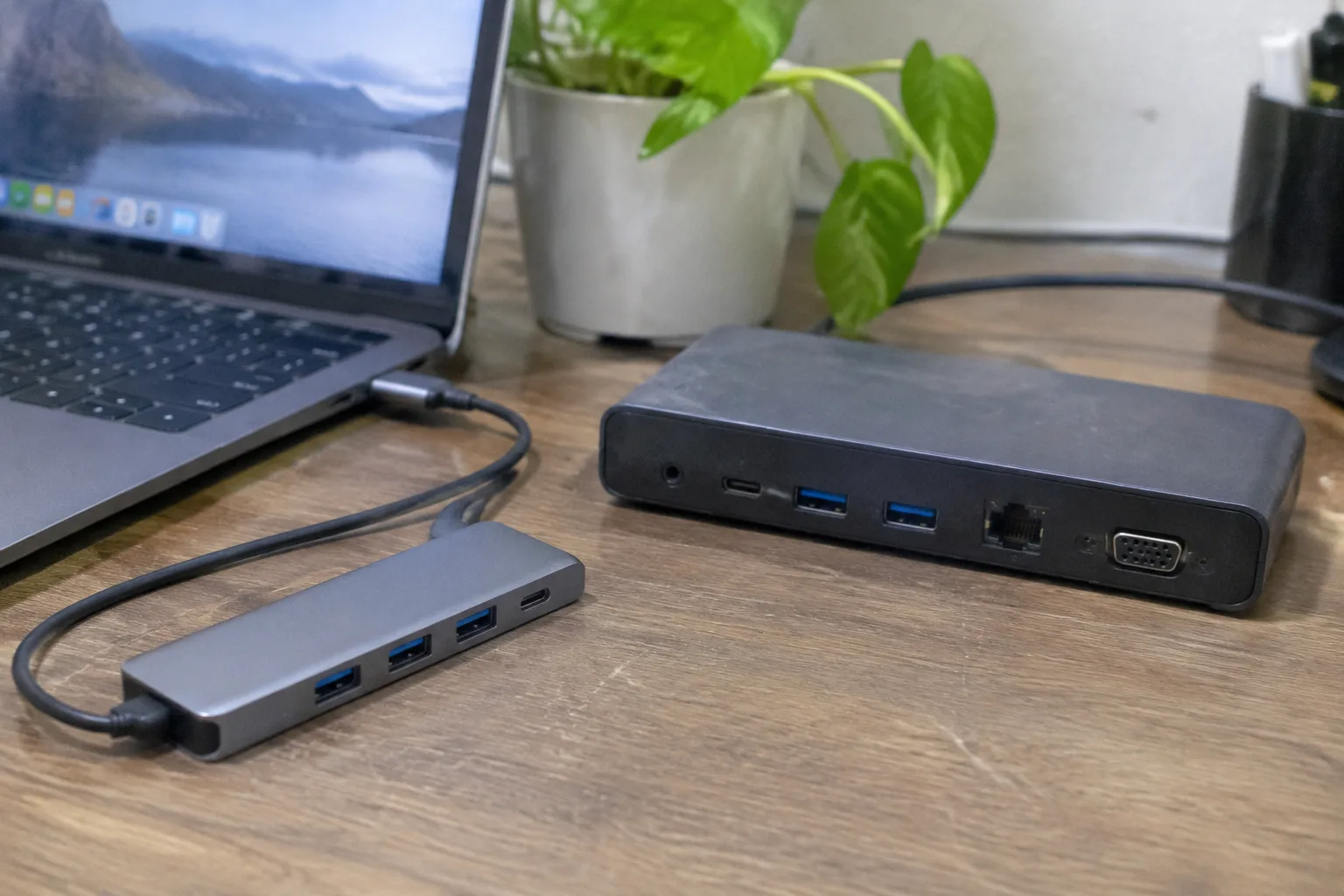
A USB hub is a splitter with a chip inside. A single cable runs from the laptop to a small slab of plastic, and three or four ports appear on the far side. The bandwidth of the upstream port gets divided among whatever is plugged in.
That division is fine for the usual load: a mouse receiver, a keyboard, a card reader, a phone charging cable. None of those need much. But a hub that claims to support a 4K monitor through a USB-C port is making a promise that depends entirely on the laptop's display support, and often the promise is thinner than the listing suggests. Cheap hubs tend to quietly drop the display output or the ethernet jack when the model tier is one step down.
The form factor is the tell. Hubs are small, bus-powered, and designed to live in a bag. A four-port hub that weighs less than a set of keys is built for a person who moves between rooms and needs an HDMI socket at the end of the trip.
What a dock adds beyond splitting
A docking station is a hub with a power supply, a display controller, and usually a network chipset. It sits on a desk, takes one cable, and feeds power back to the laptop while pushing video to one or two monitors and data to whatever else is attached.
The power delivery is the part people underestimate. A laptop that draws 65 watts needs a dock rated for at least that, and a dock rated for 100 watts is not the same as a dock rated for 100 watts of pass-through to a machine that wants 140. Underpowered docks produce the slow-charge warning, the fan that never quite settles, and the battery that drains during a video call. The dock's own power brick is often a chunky thing the size of a paperback, which is the physical price of the convenience.
Display handling separates the tiers again. A dock with two HDMI outputs can run two monitors at once, provided the laptop's GPU and the dock's controller both support it. Some docks split one DisplayPort stream into two, which caps the refresh rate at 30 Hz on a 4K panel. That number looks harmless on a spec sheet and feels like a stutter in person, especially when a cursor crosses the screen.
The cable that decides everything
Most of the frustration in this category comes down to a single cable and the standard it claims. USB-C is a connector shape, not a capability. The same oval port can carry data at 5 Gbps or 40 Gbps, deliver 15 watts or 240, and support display output or none at all. Laptop makers are not required to label which version sits on a given machine.
Thunderbolt 3 and Thunderbolt 4 are stricter: 40 Gbps, dual 4K displays, and power delivery are part of the specification. A Thunderbolt dock paired with a Thunderbolt laptop is the most predictable combination available, and it is also the most expensive. The dock and the laptop have to agree, and when they do, the setup behaves like a desktop that happens to fold shut.
The failure mode to watch for is a USB-C laptop with a plain USB 3.2 port and no DisplayPort alt mode. Plugging a dock into that machine yields charging, maybe a network connection, and a black monitor. The dock is not broken. The port simply does not carry video, and no firmware update changes that.
The desk versus the bag
Where the device lives is the cleanest way to choose. A hub belongs in a bag because its job is to solve a problem away from home: a conference room with one HDMI cable, a hotel desk with a dead ethernet jack, a friend's apartment where the only free socket is across the room. It weighs almost nothing and needs no outlet.
A dock belongs on a desk because its job is to make one spot in the world behave like a workstation. The monitors stay put, the keyboard stays put, the external drive stays put, and the laptop arrives and leaves with a single cable. That single-cable ritual is the entire product. A person who unplugs four things every evening and replugs them every morning is paying for a dock in time and patience long before the receipt.
Buying a dock for travel is a common mistake. The power brick alone can weigh a pound, the unit is too large for a slim laptop sleeve, and hotel desks rarely have the clearance for a monitor stand and a dock at once. Buying a hub for a permanent desk is the opposite mistake: it works for a while, then the second monitor arrives, then the external SSD, and the little slab runs out of ports and bandwidth in the same week.
The heat problem nobody mentions
Small hubs get warm. A bus-powered hub pushing four devices and a video signal through a cable thinner than a pencil will run hot enough to notice on a bare desk, and the warmth is a symptom of the bandwidth squeeze. The chip inside is doing real work with no fan and no heatsink to speak of.
Docks run cooler because they have room and a power supply of their own, but the power brick can get warm too, especially a compact one delivering 100 watts. A dock brick tucked behind a monitor against a wall has less airflow than it wants. The practical fix is boring: leave a hand's width of space around the brick and do not stack paper on it.
Ethernet, audio, and the ports that vanish
Laptops keep shedding ports. The headphone jack survives on some models and not others, the SD card slot comes and goes with the model year, and the ethernet jack has been gone from thin machines for years. A dock restores the full set in one move: gigabit ethernet, a headphone jack, sometimes an SD reader, often four or five USB-A ports for older peripherals.
Hubs restore a subset. The small ones tend to offer three USB-A ports and one HDMI, and that is the whole menu. A person with a wired mouse, a wired keyboard, a printer cable, and an SD card from a camera needs four ports before the monitor is even counted, which pushes a hub user toward a bigger hub, which pushes the price toward a dock anyway.
The price gap in real terms
A competent USB hub runs somewhere in the range of a nice dinner for two. A Thunderbolt dock runs into the hundreds, and a USB-C dock with dual display support sits in between. The gap is wide enough that the cheap option looks like the obvious first purchase, and for a lot of people it is.
The math changes once a monitor enters the picture. A hub that cannot drive the second screen forces a choice between buying a dock later or buying a display with its own USB hub built in. Some monitors include a USB hub and power delivery, which turns the monitor into a partial dock and can make a separate dock redundant. That path is worth checking before any dock purchase, because the monitor is already on the desk and the ports may already be there.
Matching the device to the laptop's generation
Older laptops with USB-A ports and no USB-C at all can still use a hub, and a powered USB 3.0 hub with its own small brick is the right answer there. It will not charge the laptop, and it will not drive a monitor unless the laptop has a separate video output, but it solves the port shortage for a machine that is otherwise fine.
Newer machines with a single USB-C port and nothing else are the hardest case. One port has to carry power, video, and data at once, and only a dock built to that standard does all three reliably. A hub plugged into that lone port will charge slowly or not at all, and the monitor will flicker when the laptop's power state changes. The dock is not a luxury in that situation. It is the only thing that makes the laptop usable at a desk.
The middle case, a laptop with two or three USB-C ports and one HDMI, is where most buyers land. A hub covers the travel and the occasional second screen. A dock covers the permanent desk. Owning both is not extravagant if the desk is real and the travel is real, and the combined cost is often less than a single high-end dock with the same port count.
What the receipt does not show
The hidden cost of a cheap hub is the afternoon spent diagnosing why the monitor drops to 30 Hz, why the external drive disconnects during a large file copy, or why the laptop charges to 80 percent and stops. Each of those is a support thread with a hundred replies and no clear answer, and the answer is usually that the hub is doing more than its upstream port can carry.
The hidden cost of an oversized dock is simpler: money spent on ports that never get used, and a brick that takes up desk space for a feature set built for someone with two monitors and a wired network. A dock bought for a single monitor and a keyboard is a dock half wasted.
The right purchase tends to follow the furniture. A person who works at one desk most days and carries the laptop home at night wants the dock, and the single cable is worth the price. A person who works from a kitchen table, a cafe, and a client office in the same week wants the hub, and the dock would sit in a drawer. The laptop does not care which one is attached. The desk does.