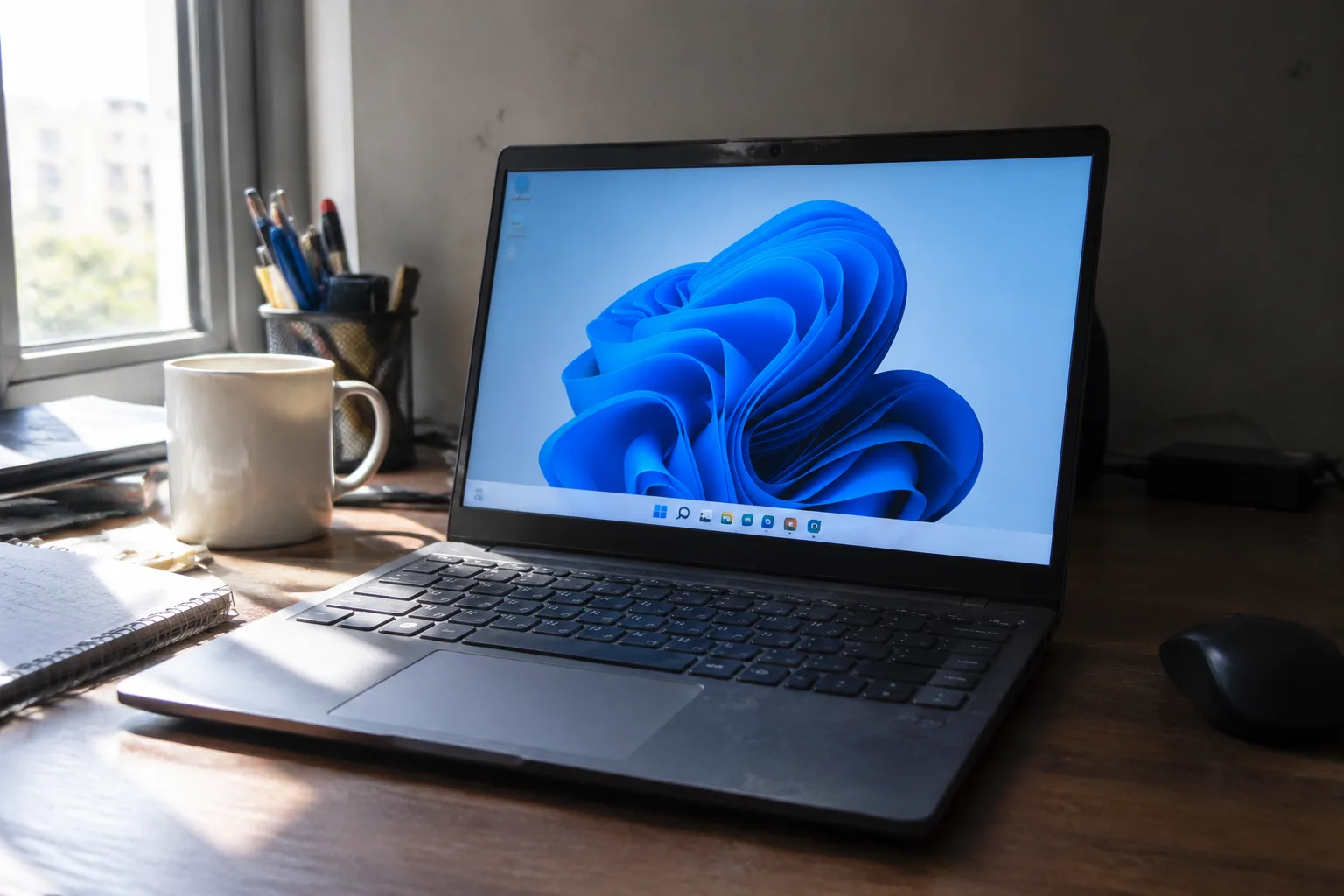
The unboxing takes four minutes. The next three hours are the part nobody warns about: a fresh Windows machine is a construction site, and the first boot hands over a bare slab of an operating system with a driver or two missing and a browser from 2015 waiting to be replaced. What follows is a working order for that first afternoon, the sequence that keeps a new laptop from becoming a half-finished project by dinner.
The checklist below assumes a standard consumer machine, the kind sold in shrink wrap at a big-box store or shipped in a plain brown box. Corporate laptops arrive pre-imaged and mostly handled. The retail one does not.
The First Boot Runs Before Any Account Is Created
The Windows setup assistant pushes hard toward a Microsoft account, a cloud sign-in, and a linked phone number. There is a quieter path: the offline account option, buried but present, usually reachable by declining the network connection on the first screen or by entering a placeholder email that the system rejects. A local account with a sensible password is the foundation. It can be linked to a Microsoft profile later, once the machine is actually working.
The reason for the detour is simple. A clean local account means the first boot finishes without waiting on a sync of someone else's settings, and every decision that follows stays deliberate.
Windows Update Comes First, and It Comes Twice
A new laptop ships with an operating system image from the factory, often weeks or months old. The first Windows Update pass installs the big cumulative package, then asks for a restart, then discovers a second wave of updates that only existed after the first wave finished. Expect two or three restart cycles.
This is also the moment to open the manufacturer's own update tool, the little utility with the brand name on it. Dell, Lenovo, HP, and Asus all ship one, and each one carries firmware and driver packages that Windows Update does not always surface. Chipset drivers, BIOS revisions, and the odd trackpad fix live there. Run it after Windows Update settles, not before, so the two do not fight.
Plan on twenty to forty minutes for this stage, most of it waiting. Plug the laptop in. Updates that die because the battery hit five percent have a way of leaving a machine in a strange state.
The Driver Check That Saves a Week of Small Annoyances
After the updates, open Device Manager and look for the yellow warning triangles. Most fresh machines have none. The ones that do are usually missing a fingerprint reader driver, a card reader, or the power management controller that governs sleep. A missing power driver shows up as a laptop that wakes from sleep with the fans at full tilt or refuses to wake at all.
The graphics driver deserves its own visit. Windows Update installs a generic one that works but leaves performance on the table. The manufacturer's site or the chip maker's own installer supplies the current version. For a machine used for photo editing or games, this matters more than any other single step on the list.
Uninstalling the Factory Bloat, Carefully
Every retail Windows laptop arrives with a layer of trial software: a security suite demanding a subscription, a photo app, a game launcher, a cloud storage pitch, sometimes a browser toolbar. The instinct is to remove all of it at once. A slower hand works better.
Start with Settings, then Apps, then Installed Apps, and sort by install date. The factory software clusters on the original date. Remove the obvious trials, the duplicate browsers, the game storefronts. Leave anything with a manufacturer's name until the driver situation is confirmed, because some of those packages are quietly holding a hardware component together.
The antivirus question resolves itself quickly. Windows Security, the built-in tool, is adequate for most home use, and a second full suite running alongside it causes more conflicts than it prevents. The trial suite goes, and the built-in one stays.
Browser, Password Manager, and the Order They Arrive In
Install the browser of choice first, before anything else that needs signing in. It becomes the vehicle for every account recovery email, every download, every password reset for the next two hours. Signing into a browser profile pulls bookmarks and extensions across, which makes the rest of the setup faster.
Then the password manager. Doing this second means every account created or recovered during the rest of the setup gets stored in one place from the start, rather than scattered across a notes app and a sticky note on the desk. A person who sets up the password manager on day one never has to migrate a mess later.
BitLocker and the Recovery Key Nobody Saves
Windows 11 turns on device encryption by default on most modern laptops, and the recovery key gets tied to the Microsoft account if one is linked. A local account changes that: the key has to be saved manually, or the machine will lock itself out after a firmware update or a motherboard repair.
Open Settings, Privacy and Security, Device Encryption, and look for the option to back up the recovery key. Save it to a password manager entry, print it, or write it down and put it somewhere that is not the laptop itself. The number is a long string of digits. Losing it means a wiped drive the day the firmware decides to misbehave.
Power Settings That Match How the Laptop Will Actually Be Used
The default power plan on a new machine is tuned for battery life above all else, which means the processor idles down aggressively and the screen dims at inconvenient moments. A laptop that lives on a desk most of the day should be set to balanced or high performance when plugged in.
The battery threshold setting matters for machines that stay plugged in for months. Many manufacturers expose a charge limit in their own utility, capping the battery at sixty or eighty percent to slow the chemical wear that comes from sitting at full charge. For a desktop-replacement laptop, turning that on adds years to the battery's useful life. For a machine that travels daily, leave it off.
File History, Backup, and the One Folder That Matters
Before any real work happens on the machine, a backup plan should exist. Windows has File History for local drives and OneDrive for cloud sync, and either one beats the alternative of a dead drive with a thesis on it. The important move is picking the folder that holds the irreplaceable files and pointing a backup at it before those files exist.
An external drive costs less than a dinner out and holds a full image of the system. A clone made on day one, before the bloat removal and the account setup, becomes the fallback if a later step goes wrong. It is the cheapest insurance in the entire process.
The Display and Trackpad Calibration Most People Skip
Two settings get ignored on nearly every new laptop and quietly annoy their owners for years. The first is display scaling. A 14-inch screen at 1920 by 1200 pixels ships at 100 percent scaling, which renders text small enough to cause squinting. Settings, System, Display, and a bump to 125 percent usually fixes it, and Windows remembers per-monitor settings if an external screen gets attached later.
The second is the trackpad sensitivity and gesture set. Windows 11 supports three- and four-finger gestures that most people never discover. Settings, Bluetooth and Devices, Touchpad, and a few minutes spent assigning the gestures to window switching and desktop showing turns a mediocre input device into a good one. The pointer speed slider is worth a nudge too; the default is sluggish on most panels.
The Software Install Order That Avoids Conflicts
With the foundation set, the applications go on in a deliberate order. Office suite first, since it registers file associations and installs fonts. Then the creative or development tools, which tend to pull in their own runtime libraries. Then the small utilities: a PDF reader, an archive tool, a screenshot capture. Antivirus last, if at all, since it wants to scan everything installed before it.
The install order matters less for the software itself than for the restart count. Grouping installs that need a reboot together saves a person from restarting four separate times across an afternoon.
A Restore Point Made Before the Machine Gets Comfortable
Once the browser, the password manager, the drivers, and the core applications are in place, the machine is in its best state: clean, current, and free of the accumulated clutter that arrives with daily use. This is the moment to create a system restore point and, if possible, a full disk image.
A restore point takes a minute and lives on the drive itself. A full image takes longer and lives on the external drive. Both serve the same purpose: a known-good snapshot to return to when a driver update in six months breaks the Wi-Fi or a piece of software installs something that refuses to leave. The image made on day one becomes the reference point for every future problem.
Three hours into the process, the laptop is finally a working tool rather than a project. The fans have settled, the updates have stopped asking for restarts, and the desktop holds only the icons that were chosen. The temptation is to keep tinkering. The better move is to close the lid, let the machine sleep, and come back the next morning to the part that actually matters: using it.