Most laptop webcams are installed with a fixed-focus lens the size of a grain of rice and a sensor that struggles in anything dimmer than a bright office. That is the baseline a buyer is upgrading from, and it explains why so many video calls look the way they do: soft faces, blown-out windows, a faint electric hum of grain across the cheekbones. A dedicated webcam fixes those problems, but only if the buyer picks for the right reasons. The wrong reasons are resolution and megapixels, which are the two numbers printed largest on the box and the two that matter least.
The single most useful thing a webcam can do is handle bad light. A 1080p camera with a decent sensor and real exposure control will look better on a Tuesday morning call than a 4K camera with a tiny sensor fighting a dark room. Resolution is a ceiling; the sensor and the lens determine how close to that ceiling the picture actually gets.
Why the sensor matters more than the megapixel count
Light falls on a photosensitive surface, and the size of that surface sets how much light each pixel can collect. A 4K camera cramming eight million pixels onto a sensor smaller than a fingernail produces noisier images in low light than a 1080p camera spreading two million pixels across a larger sensor. The pixels are bigger, they gather more photons, and the image stays clean when the room goes dim.
Buyers rarely see sensor size on the spec sheet, which is why the honest brands mention it and the rest bury it. When it is listed, anything around 1/2.8 inches or larger is workable. The 1/3-inch sensors common in budget models will struggle the moment a desk lamp is the only light source. This is the quiet dividing line between a camera that flatters and one that makes a person look like a witness in a security footage clip.
A larger sensor also permits a wider aperture lens, and a wider aperture pulls in more light while softening the background. That shallow depth of field, the blurring of the bookshelf behind the chair, is the visual signature of a good webcam. It is created optically, by the lens, and no software filter replicates it convincingly.
The frame rate question nobody asks until the video stutters
Thirty frames per second is the standard for a talking head, and it is fine. Sixty frames per second matters for two situations: fast hand gestures during a demo, and any call where the person moves around a lot. The motion stays smooth instead of smearing. Most meeting software caps the stream well below what the camera can output anyway, so 60fps is a nice ceiling to have and rarely a reason to pay a premium.
What does matter is whether the camera maintains its frame rate when the room darkens. Many cheap models drop to 15fps in low light to keep the exposure up, and the result is a jerky, slightly ghostly image. A camera that holds 30fps in a dim room is worth more than one that hits 4K in perfect studio light.
Field of view and the geometry of a home office
A webcam's field of view decides how much of the room enters the frame. A 78-degree lens is roughly the sweet spot: head and shoulders fill the picture, with a little space around them. Wider lenses, 90 degrees and up, pull in the whole room and shrink the face into the middle of a wide shot, which reads as distant and impersonal.
The practical problem with wide lenses is that they exaggerate whatever is behind the subject. A 100-degree camera mounted on a monitor will happily include the unmade bed, the laundry chair, and the doorway. A narrower lens crops all of that out and keeps attention on the face. For anyone calling from a bedroom or a shared apartment, a narrower field of view is a form of privacy.
Some cameras offer adjustable fields of view, which is genuinely useful: wide for a group or a whiteboard, narrow for a solo call. That flexibility is worth a modest premium over a fixed lens that is either too tight or too loose for the room it lives in.
Autofocus versus fixed focus, and when each one wins
Fixed-focus lenses are set to a distance that keeps everything from about half a meter to infinity reasonably sharp. For a person sitting at a desk, that is entirely adequate, and it never hunts or drifts. Autofocus earns its keep when the subject moves closer to the lens, holds up a document, or leans in to show something on a whiteboard.
The failure mode of cheap autofocus is a slow, audible hunt: the lens racking back and forth while the face goes soft and sharp and soft again. Good autofocus is invisible. If a buyer cannot test the camera before purchase, reading reviews specifically for autofocus behavior is more useful than any spec sheet.
Microphones: the half of the call people forget to evaluate
A crisp image with muffled audio is a worse call than a soft image with clear audio. Viewers forgive a slightly grainy face; they do not forgive straining to hear. Built-in webcam microphones vary enormously, and most are mediocre. A camera with a decent dual-microphone array and noise processing will outperform the laptop's own mic, which picks up keyboard clatter and fan noise from inside the chassis.
The catch is placement. A microphone mounted on top of a monitor sits a meter or more from the mouth, so it captures room echo along with the voice. A separate headset or a desk microphone gets closer and sounds fuller. Buyers who already own a decent headset can treat the webcam microphone as a backup and put their budget into the sensor instead.
Privacy shutters, mounts, and the small hardware details
A physical shutter that slides over the lens is a small feature that changes daily behavior. It ends the ritual of angling the camera at the ceiling or draping a cloth over the monitor. Software toggles exist, but a mechanical shutter is visible from across the room and requires no trust in the operating system.
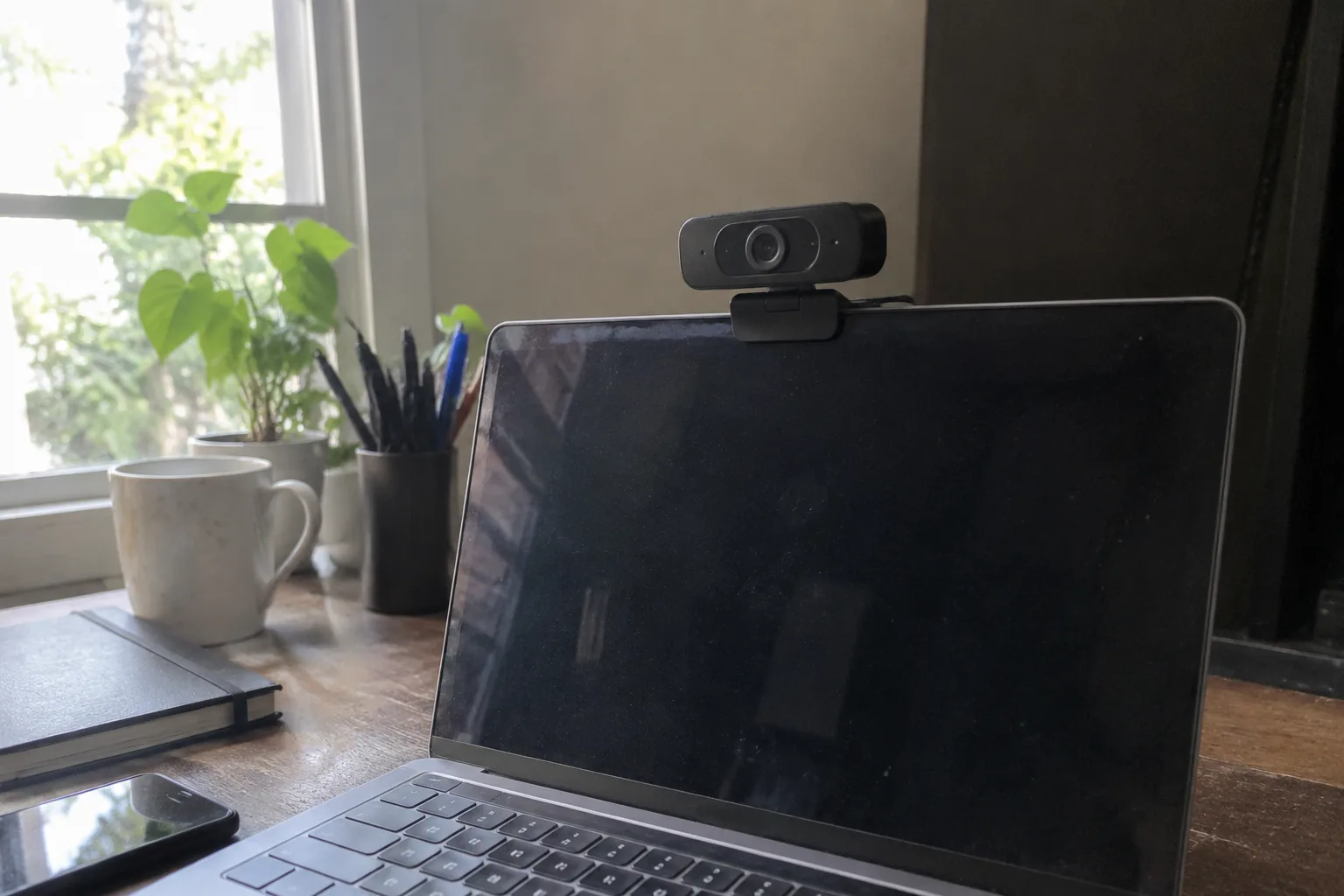
The mount deserves a look too. Most webcams clip onto the top edge of a monitor, and a heavy camera on a thin laptop lid will make the screen wobble or slowly droop. A mount with a firm hinge and a rubberized grip holds position. Some cameras include a tripod thread on the bottom, which allows mounting on a small desk tripod at eye level, the single biggest improvement most people can make to their framing.
Eye-level placement is worth emphasizing because it costs nothing and fixes the most common flaw in video calls: the upward nose-shot from a camera sitting on a desk or the downward angle from a monitor that is too high. The camera should sit at roughly the same height as the eyes, so the person appears to be looking at the other participants rather than at their own keyboard.
What resolution to actually buy, and when 4K is wasted
1080p at 30fps remains the sensible default for meetings, and the price gap between a good 1080p camera and a good 4K camera is large. The 4K stream almost never reaches the other side intact: meeting platforms compress it, participants watch it in a small window, and the extra detail disappears into the codec. A 4K camera buys room to crop and zoom digitally, and it future-proofs for recording, but for the call itself the benefit is marginal.
The exception is anyone who records presentations, teaches online, or streams. There, the extra resolution survives the compression and allows a tighter crop on the face without softening. For everyone else, the money is better spent on a larger sensor, a better lens, and a camera that behaves in poor light.
Software support and the operating system trap
Some webcams depend on proprietary software for their best features: exposure control, field-of-view switching, background blur. That software is often Windows-only or Mac-only, and it sometimes lags years behind operating system updates. A camera whose brightness controls live entirely in a companion app is a camera that may lose those controls on the next major OS release.
The sturdier choice stores settings on the camera itself or exposes them through standard USB video class controls, which the operating system handles natively. Plug it in, and the exposure and white balance adjustments appear in the system camera settings. No installer, no account, no update nag. This is the quiet mark of hardware built for the long haul.
A practical way to judge a webcam before buying it
Spec sheets reward the wrong instincts. A better test is to find sample footage shot in ordinary room light, not the brightly lit studio clips on the manufacturer's page. Look at the skin tones, the noise in the shadows, and whether the background is softly blurred or harshly sharp. Footage from a dim bedroom tells more than any list of features.
The second test is the return policy. A webcam is a personal fit, like a pair of glasses, and the only reliable evaluation happens on the actual desk, in the actual light, on the actual calls. A retailer with a generous return window turns a risky purchase into a trial. Buy the camera that looks right in the reviews, then judge it in the room where it will live.
There is one more consideration that rarely appears in reviews: how the camera behaves when the call software is not the only thing running. A webcam that demands a background process, a driver update, and a login will be a source of friction every time the laptop wakes from sleep. The best camera is the one that is simply there, working, the moment the meeting link is clicked.