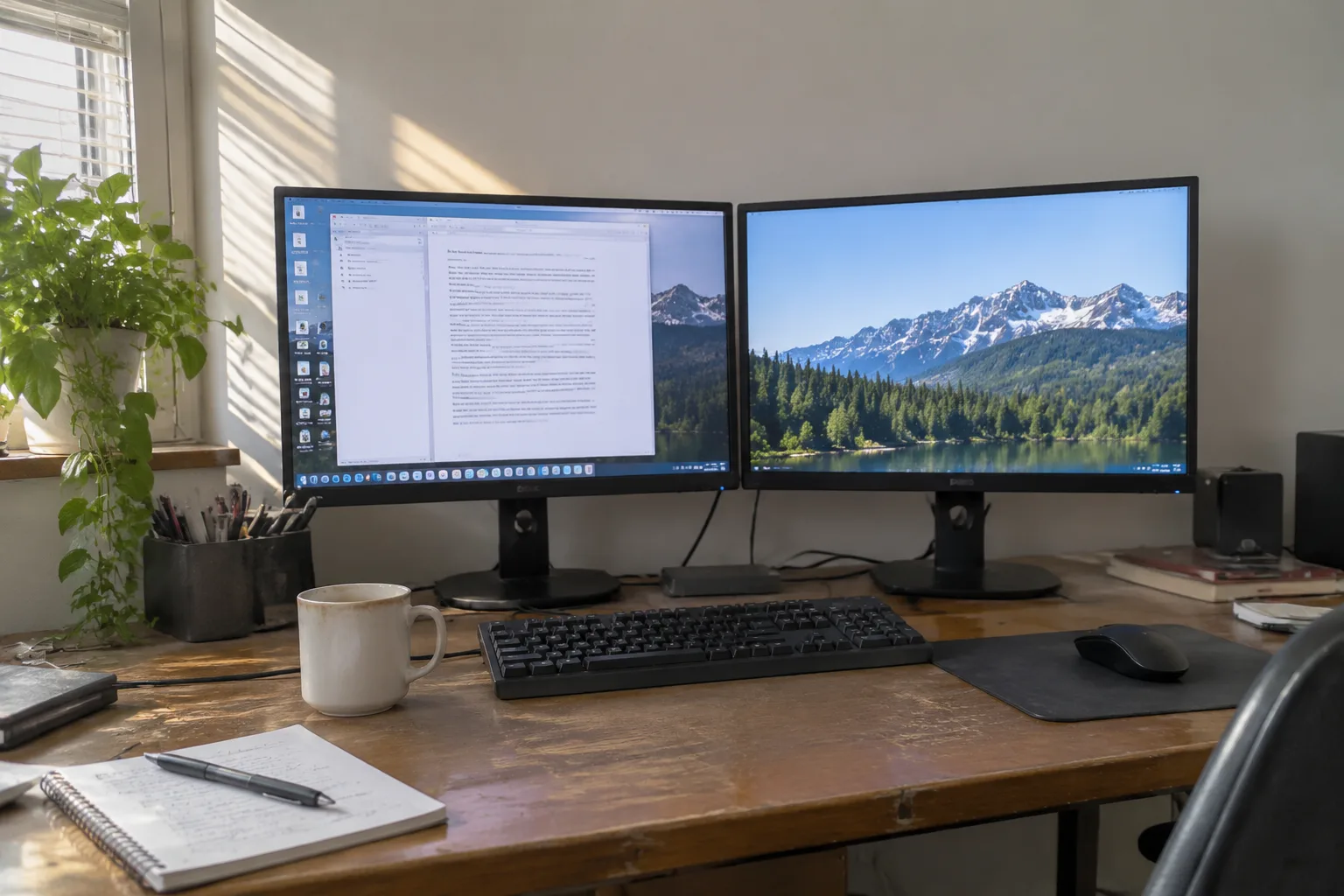
Two monitors on one desk is now the default office shape, and the desk in question is usually a slab of wood in a spare bedroom with a radiator somewhere behind it. The hardware has become cheap enough that the interesting problems are no longer about buying the right screen. They are about geometry, light, and the small daily frictions that decide whether a second display makes a person faster or just busier. A productive dual-monitor setup is mostly a set of physical decisions made once and then left alone.
The primary screen belongs in front of the face
Most people set up two identical monitors and split them down the middle, centering the seam on their nose. This is the wrong instinct. The eyes rotate within a fairly narrow cone before the neck has to help, and a seam parked at dead center means every glance lands on a bezel. The fix is to nominate one screen as primary and put it directly ahead, then set the second off to one side.
Which side is a personal matter. Right-handed people tend to angle the secondary display to the right, since the mouse hand already lives there and the arm does not have to cross the body to reach a reference window. Left-eye-dominant readers sometimes prefer the opposite. There is no universal answer, but there is a universal test: sit down, look straight ahead without moving the neck, and notice which screen the gaze lands on. That one should be primary.
A 24-inch primary with a smaller secondary is a perfectly respectable arrangement. Two mismatched sizes are easier to live with than two identical panels fighting for the center. The eye adapts to the size difference within a day or two.
Height is the setting almost everyone gets wrong
The top of the primary screen should sit roughly at eye level when the spine is straight and the shoulders are relaxed. This is the single most repeated piece of ergonomic advice, and it is also the one most often ignored because the monitor stand that ships in the box is too short. A screen perched on its factory base usually leaves the top edge somewhere around the collarbone, which pitches the head forward by ten or fifteen degrees for hours at a time.
A stack of books under the stand works. A monitor arm works better. Either way, the goal is a neutral neck, and the way to check is to close the eyes, roll the head gently to a comfortable resting position, open them, and see where the gaze falls. That spot is where the top third of the primary screen should live.
The secondary display can sit a little lower. It is a reference surface, glanced at rather than stared into, and dropping it slightly keeps the neck from swiveling upward every time the calendar comes into view.
Distance matters more than diagonal inches
The standard recommendation is an arm's length between the eyes and the glass, roughly 20 to 30 inches for most adults. What matters is that the distance is comfortable enough to read at default font sizes without leaning in, because leaning is the habit that quietly wrecks posture over months.
Depth of desk constrains this. A 24-inch-deep surface with the monitors pushed back against the wall leaves plenty of room for a keyboard and forearms. A shallower desk forces the screens forward, and the arms end up bent at a sharper angle. If the desk is shallow, a monitor arm clamped to the rear edge buys back several inches by eliminating the base.
Ultrawide panels complicate the calculation. A single 34-inch curved screen replaces two monitors and removes the bezel problem entirely, but it also spreads content across a wider arc, and the outer edges sit farther from the eyes than the center. For spreadsheet work and side-by-side documents, a curved ultrawide is genuinely pleasant. For a workflow built around two full-size application windows, two separate panels usually win.
The seam should land where the work divides
Window management is where dual monitors earn their keep, and the arrangement of the seam is the lever. If the daily work is a browser on one side and a document on the other, the seam should sit at the boundary between those two activities, not at the center of the visual field. That usually means pushing the primary screen slightly off-center and letting the secondary take a narrower slice.
Operating systems have made this easier. Snapping a window to the left or right half of a screen, or to quarters, is a keyboard shortcut away on every major platform. The habit worth building is to assign a fixed role to each screen: primary for the active task, secondary for reference, chat, and the calendar. A person who keeps email permanently on the secondary display stops alt-tabbing to check it, and the interruption cost drops.
There is a real cost to a second screen, though. A wider field of view invites more windows to stay open, and more open windows mean more visual noise. The most productive dual-monitor desks tend to be the ones with a rule about what is allowed on the second panel.
Lighting decides whether the screens are readable at all
A window directly behind the monitors turns both screens into mirrors by mid-afternoon. A window directly behind the chair creates glare across the glass. The workable arrangement puts the main light source to the side, ideally at roughly ninety degrees to the line of sight, so it illuminates the desk without bouncing off the panels.
Overhead lighting is the other culprit. A ceiling fixture directly above and slightly behind the head throws a bright reflection onto the upper portion of the screens. A desk lamp aimed at the wall or the work surface, rather than at the monitor faces, does more for readability than any brightness setting.
Brightness matching between the two panels is worth a minute of attention. Two identical monitors at different brightness levels create a subtle flicker effect as the eyes move between them, and the mismatch is tiring in a way that is hard to name until it is fixed. Set both to the same level, or let the operating system handle it with a matched color profile.
Cable routing is a productivity feature
A tangle of cables behind two monitors is not just ugly. It makes every adjustment harder, and adjustments happen constantly: a monitor nudged a centimeter, a laptop plugged in, a webcam repositioned for a call. A monitor arm with integrated cable channels, or a simple set of adhesive clips along the rear edge of the desk, turns a rat's nest into a tidy spine that can be moved without unplugging anything.
The keyboard and mouse cables deserve the same treatment. A wireless set removes two cables from the desk surface entirely, and the difference in how the workspace feels is out of proportion to the cost. The desk stops being a place where things snag.
A single USB-C or Thunderbolt dock, if the laptop supports it, collapses the entire connection to one cable. That one cable is the difference between a desk that takes ten seconds to sit down at and a desk that takes a minute of plugging and unplugging every morning.
The chair and the floor complete the geometry
Monitor height is meaningless if the chair is set wrong. Feet flat on the floor, knees roughly at hip height, elbows at about ninety degrees when the hands rest on the keyboard. A footrest is not a luxury for shorter people; it corrects the whole chain upward.
The desk surface itself matters less than its stability. A wobbly desk transmits every keystroke into monitor shake, and two monitors on a shared stand amplify the sway. A solid desk with the monitors on separate arms, or one sturdy arm with a heavy base, keeps the screens still.
What the setup looks like after a month
The tell of a dual-monitor desk that works is that nothing on it gets adjusted anymore. The primary screen sits where the gaze lands, the secondary holds the calendar and the chat window, the cables disappear behind the desk, and the lighting comes from the side. The person sitting there has stopped thinking about the hardware and started using it.
The opposite tell is a desk where the second monitor was added and then quietly abandoned, its screen dark most of the day because the arrangement never settled. That outcome is common, and it usually traces back to one of three mistakes: the seam at the center, the screens too low, or a window throwing glare across both panels. Fix those three and the second display stops being a spare and starts being part of the work.