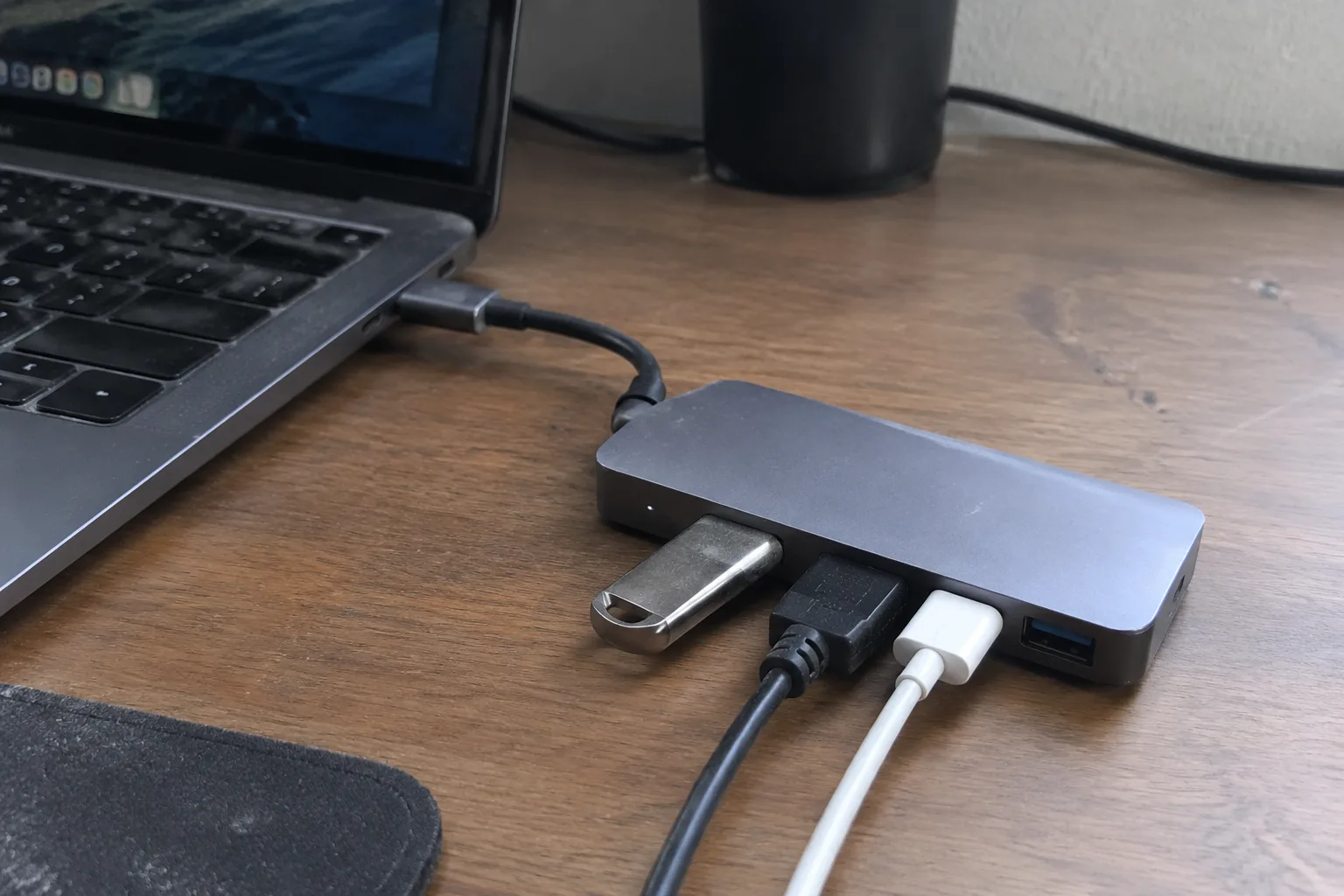
The specification sheet for a USB-C docking station is a document written to flatter. It lists a row of ports, a number for power delivery, a resolution or two, and somewhere in the fine print a phrase like "supports dual displays." The numbers are technically true and practically misleading in roughly equal measure. A buyer who reads the box and nothing else tends to discover the gap about three weeks after the return window closes, usually while staring at a second monitor that has gone cheerfully dark.
What separates a dock that quietly does its job for four years from one that becomes a drawer ornament is mostly a short list of details the marketing never foregrounds. Those details are worth knowing before the money leaves the account.
The Laptop's Port Has to Do More Than Fit
A USB-C connector is a shape. What travels through it is a negotiation between the laptop, the dock, and the cable, and the laptop is the party that decides how generous that negotiation gets. Many thin laptops ship with a port that handles data and charging but routes video through a separate standard called DisplayPort Alt Mode at a limited lane count. Others run a capped power input, often 65 watts on machines that would happily drink 100.
The practical consequence: a dock rated for two 4K screens can arrive at a laptop that will only ever drive one, no matter how good the dock is. The laptop manual, not the dock's product page, is the first document worth opening. A machine built around a lower-power processor may also throttle hard when the dock pushes a charge at the same time it feeds peripherals, and the symptom looks like a slow laptop rather than a dock problem.
Power Delivery Is a Budget, Not a Number
The label says 100 watts. Subtract what the dock keeps for its own operation, its card reader, its Ethernet chip, its USB controllers, and the figure handed to the laptop is smaller. Then subtract the power the dock passes along to whatever is plugged into its downstream ports. A phone charging from the front port and an external SSD pulling current both come out of the same envelope.
On a desk with a phone, a tablet, and a portable drive, a "100 watt" dock can deliver well under 70 to the laptop. That is enough to hold a charge during light work and not enough to keep pace during a video call with a virtual background running. The specification worth finding is the laptop charging wattage specifically, listed separately from total output, and the honest ones do list it.
Display Output Depends on Which Ports Get Used at Once
Docks rarely advertise the combinatorial problem. A station with two HDMI ports and one DisplayPort may drive two external screens at full resolution, or it may drive one at full resolution and drop the second to a lower refresh rate the moment all three are occupied. The bandwidth inside the dock is finite, and the manual's footnotes are where that ceiling lives.
Anyone running a laptop screen plus two externals should check the resolution and refresh rate the dock claims for that exact configuration, not the maximum for a single display. A dock that promises 4K at 60 Hz for one monitor may only manage 4K at 30 Hz for two, and 30 Hz on a mouse-driven desktop feels like dragging a cursor through wet sand. The footnote matters more than the headline.
Ethernet and Wi-Fi Compete for the Same Antenna
Metal-bodied laptops and crowded wireless bands make a wired connection attractive, and most docks include a gigabit port for exactly that reason. What the box does not mention is that many laptops disable or degrade their own Wi-Fi when a wired link is active, and some docks with metal housings sit close enough to the laptop to interfere with the antenna regardless.
A buyer planning to run a dock under a monitor with the laptop lid closed should check whether the dock's Ethernet controller is a known quantity. Cheap controllers occasionally drop the link when the machine sleeps and fail to renegotiate on wake, a fault that presents as an intermittent network outage and gets blamed on the router for months.
The Cable in the Box Is Part of the Product
The short USB-C cable bundled with a dock is often the weakest component in the chain. Cables that carry video and high wattage need specific internal wiring, and a cable rated only for data at slower speeds will happily pass power while refusing to send a display signal. Swapping in a nicer-looking cable from a drawer is a common way to break a perfectly good dock.
The bundled cable's length is also a design constraint. A dock designed to tuck behind a monitor ships with a cable sized for that reach, and adding an extension introduces signal loss on video lines long before it affects charging. Buyers who intend to mount the dock under the desk should measure the run to the laptop and confirm the dock ships with a cable long enough, or budget for a certified replacement of the right spec.
Heat Is the Quiet Failure Mode
A dock doing real work, charging a laptop, driving two screens, and moving files over Ethernet, converts a meaningful amount of power into heat. The aluminum slab that feels cool to the touch at idle can run warm enough to be uncomfortable within an hour of load. That heat is not automatically a defect, but it shortens the life of the components inside and it is the reason some docks throttle their own charging rate after a while.
Placement matters. A dock wedged between a monitor stand and a wall with no airflow is a different product from the same dock on an open shelf. Buyers who plan to stack the dock under a laptop or hide it in a closed cable tray should expect a shorter service life and plan accordingly, because the failure usually arrives as a port that works intermittently rather than a clean death.
Firmware Updates Are a Support Question, Not a Feature
Docks contain controllers that run firmware, and firmware bugs are common enough that the manufacturer's update history is a useful signal. A dock with a public support page, dated firmware releases, and a changelog that mentions display or charging fixes is a dock whose maker is still paying attention. A dock with no update mechanism at all is a sealed box that will never improve.
This matters most on machines with newer processors, where a dock built for an older generation can develop quirks after a laptop upgrade. The question to ask before purchase is simple: can this dock receive a firmware update, and does the maker publish them? The answer separates a product from an appliance.
What the Return Window Is Actually For
No amount of pre-purchase reading substitutes for a week of real use. The sensible test is to set the dock up exactly as intended, with the real monitors, the real peripherals, and the real laptop, and run it hard for several days: two screens on, a video call, a large file transfer, a phone charging, the lid closed, the laptop asleep and woken. The faults that matter show up in the margins of that routine, a screen that flickers when the phone is unplugged, a network drop after sleep, a charge that stops at 94 percent.
Buy from a seller with a return window long enough to cover that test, and treat the first week as a trial rather than a formality. The dock that survives it tends to disappear into the desk, which is the highest compliment hardware can receive.