A checklist for remote-work VPNs tends to start in the wrong place: with a list of features. That order gets the decision backwards. The first question is what a person is actually protecting and from whom, and everything else, the protocol, the logging policy, the kill switch, follows from that answer. Get the threat model wrong and the fanciest tunnel in the world guards the wrong door.
So this is a working checklist, the kind taped inside a cabinet door, built around the specific situation of a person working from a kitchen table, a rented flat, a co-working desk, or a hotel room. It assumes the work involves a company laptop, some shared files, maybe a client call, and a home router that has not been rebooted since it was installed.
The home network is the perimeter now
Office networks had a firewall, a security team, and a person who noticed when something looked odd. A home network has a router from the ISP, a default admin password, and a smart speaker listening on the same subnet. That is the real perimeter, and it is soft.
The VPN's job on a home connection is narrower than people assume. It encrypts traffic between the laptop and the VPN server, which matters most on public Wi-Fi and on any network the worker does not control. On a home line the encryption is less urgent than the isolation: a tunnel puts the work machine on the company's network segment instead of the same flat network as the television, the games console, and the printer with the unpatched firmware.
That isolation is the underrated part. Most home compromises do not arrive through a sophisticated man-in-the-middle attack on the ISP. They arrive because a device on the same network got infected, and the laptop was reachable.
Split tunneling: the decision that shapes everything else
Split tunneling lets some traffic go through the VPN and the rest go direct. Full tunneling sends everything through. The choice is usually presented as a performance question, and it is really a policy question.
Full tunneling is the safer default for a work machine. It means the company sees and filters all traffic, which some workers resent and most security teams prefer. It also means video calls route through a corporate gateway, which can turn a clean 200 Mbps fiber line into a stuttering mess if that gateway sits three time zones away.
Split tunneling keeps calls and streaming local while work resources go through the tunnel. That is a reasonable compromise when the company's VPN concentrator is far away and the call quality matters. The cost is that the split has to be configured correctly, and a misconfigured split can leak DNS queries or route work traffic outside the tunnel without anyone noticing for months.
The checklist item here is simple: know which mode is in use, and know why. A worker who cannot answer that question does not have a working setup, however green the connection icon looks.
The kill switch is not optional on a laptop that travels
A kill switch blocks all internet traffic if the VPN drops. On a desktop in a fixed home office the risk of a drop is low and the consequence is brief. On a laptop that moves between home, a cafe, an airport, and a hotel, the drop is the whole point of the feature.
VPN connections fail. They fail when the Wi-Fi hands off between access points, when the laptop wakes from sleep, when the hotel captive portal interferes, and when the VPN server itself has a bad afternoon. Each failure is a window where traffic that was supposed to be inside the tunnel goes out in the clear.
The kill switch closes that window. It should be enabled on any machine that leaves the house. The setting is buried in most clients, sometimes under a name like "block connections without VPN" or "always-on," and it is worth finding before the first trip rather than after the first scare.
Logging policy: read the actual document, not the badge
Every commercial VPN advertises a no-logs policy. The phrase means almost nothing on its own, because "logs" is a word with a wide definition. Connection timestamps, assigned IP addresses, bandwidth used, and DNS queries are all things a provider might record and still call itself no-logs.
For remote work the relevant question is narrower: what does the provider retain that could identify which employee connected when, and for how long? A company that issues the VPN usually answers this in its own policy. A worker choosing a personal VPN for work should look for an independently audited policy, a jurisdiction with strong privacy law, and a plain-language statement of what is kept and for how long.
Audits are worth what the auditor's scope says they are worth. A report that covers the server configuration but not the billing records tells a reader something, just not the thing the marketing page implies.
Protocol and port: the settings that decide whether it works at all
WireGuard is fast, modern, and increasingly the default. OpenVPN is older, heavier, and still the most widely supported. IKEv2 handles network changes well, which matters on a laptop that moves between Wi-Fi and a phone hotspot. The right choice depends less on ideology than on what the network in front of the worker will allow.
Hotel and airport networks block ports. A VPN that works perfectly at home can fail completely on a network that throttles UDP or blocks the standard port. Most clients offer a fallback, often TCP port 443, which looks like ordinary HTTPS traffic and gets through more often. Knowing where that fallback lives, and how to switch to it, is the difference between a working afternoon and a wasted one.
The same logic applies to obfuscation features, which disguise VPN traffic as normal web traffic. They are sold for censorship circumvention, and they earn their keep on restrictive corporate guest networks and some hotel systems. For a worker who travels, the client should have a fallback path and the worker should have tested it at least once before relying on it.
DNS leaks and the test that takes two minutes
A VPN can encrypt every packet and still leak the one thing that reveals browsing habits: DNS queries. If the laptop sends domain lookups to the ISP's resolver instead of through the tunnel, an observer sees every site visited even though the pages themselves are encrypted.
The fix is a DNS leak test, run once after setup and again after any change to the client or the network. It takes two minutes and it is the single most useful piece of maintenance in the whole checklist. A setup that passes the leak test and has a kill switch enabled is doing most of what a remote-work VPN is supposed to do.
The router question: where the tunnel terminates
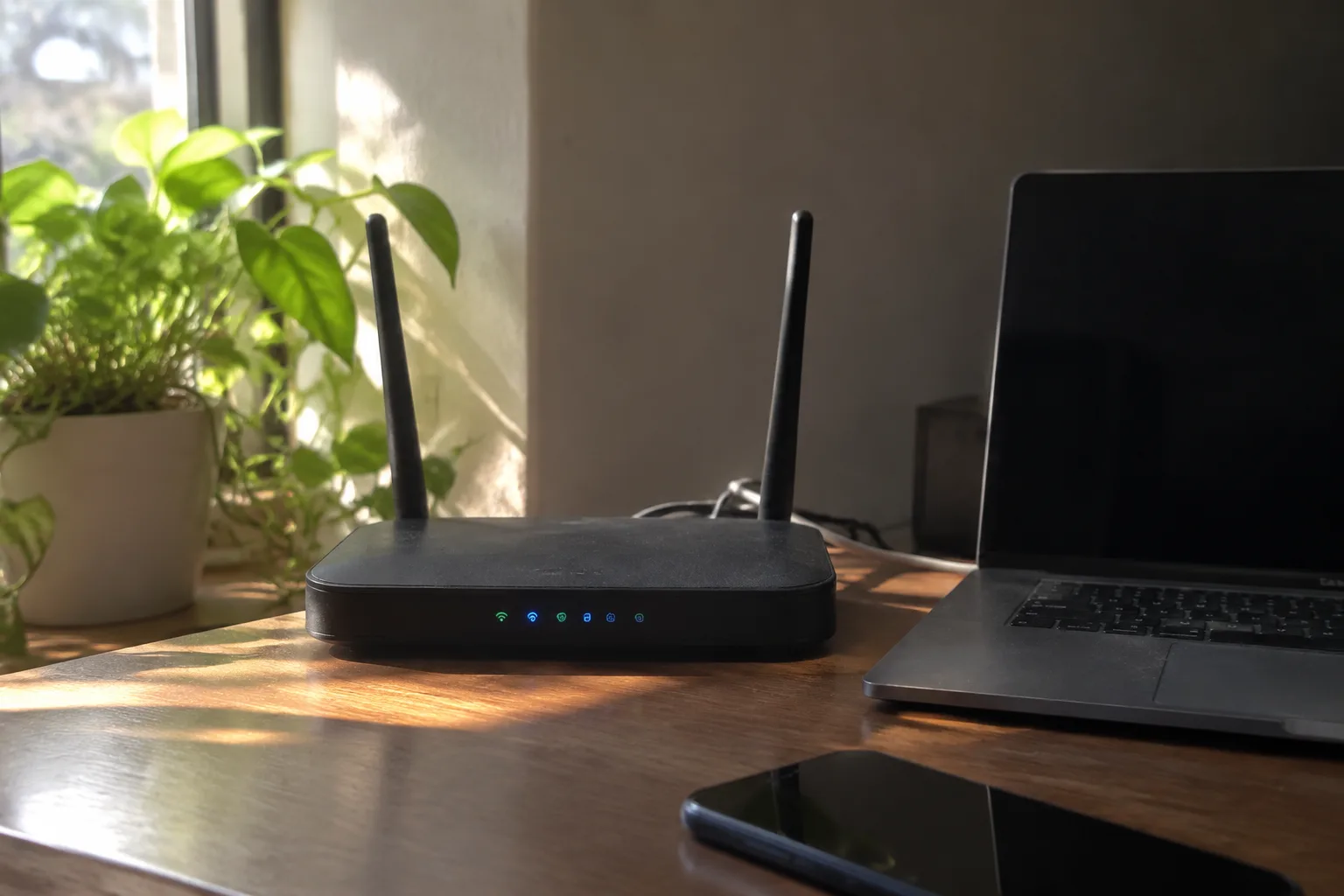
There are two places to put a VPN: on the device or on the router. Device-level clients are easier to manage and travel with the laptop. A router-level tunnel covers every device in the house, including the tablet and the work phone, and it removes the per-device setup burden.
The router option has a real cost. Consumer routers vary wildly in VPN support and throughput, and a cheap model running an OpenVPN server can cap the whole house at a fraction of the line speed. It also centralizes the failure: when the tunnel drops at the router, every device loses connectivity at once, which is a worse afternoon than one laptop losing its tunnel.
For a single remote worker, the device client is usually the right call. For a household where several people work or study from home, a router with a properly configured tunnel and enough CPU to push the line speed is worth the setup pain. The checklist item is to pick one, document it, and stop maintaining both.
What the company already provides, and when to use it instead
Many remote workers do not need to choose a VPN at all, because the employer already runs one. Corporate VPNs come with the company's logging, the company's device management, and the company's support line. They also come with the company's gateway location, which is why call quality can suffer.
A personal VPN layered on top of a corporate one is usually a mistake. It adds a second encryption layer, doubles the latency, and can break the corporate client's split-tunnel rules in ways that are hard to diagnose. The right move is to use the corporate VPN for work resources and a separate, reputable VPN only for personal traffic on personal devices.
Workers who run their own small business or freelance have the harder job: they are their own IT department. For them the checklist is the whole package, audit on the provider, kill switch on the laptop, DNS leak test after setup, fallback port tested before travel, and a note in a password manager about which client is installed on which machine.
A short list that fits on an index card
Know the threat model: home network isolation, public Wi-Fi encryption, travel resilience. Pick full or split tunneling and be able to explain the choice. Enable the kill switch on any laptop that leaves the house. Read the provider's actual retention policy rather than the badge. Test the fallback protocol and port before the first trip. Run a DNS leak test after any change. Decide whether the tunnel lives on the device or the router, and do not maintain both by accident.
That is the whole thing, and it fits on an index card because the hard part was never the list. The hard part is that a VPN is a piece of infrastructure a remote worker now owns, and owning infrastructure means knowing what it does when it breaks. The worker who has tested the fallback port and run the leak test is the one who keeps working when the hotel network turns hostile. The one who trusted the green icon is the one on the phone with the help desk at 11 p.m.