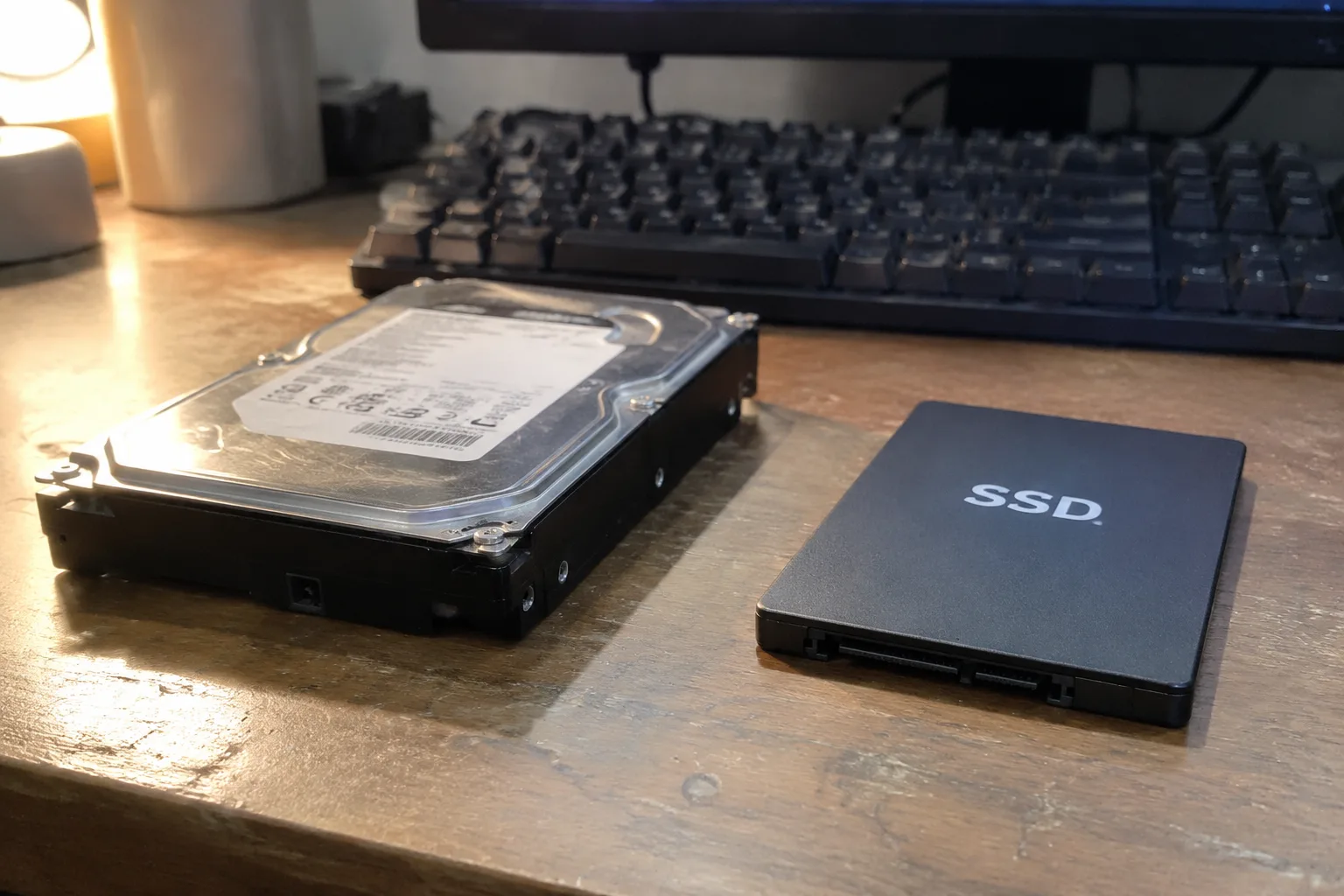
The first time a desktop builder pulls a mechanical hard drive out of its anti-static bag, the sound is a small anticlimax. A dull clack of metal against foam. Then the weight of it in the hand, that dense brick feel, and the faint sense that something inside is already spinning even though the power is off. Solid-state drives arrive differently. They are light enough to feel like a mistake, like a plastic shim that fell out of a laptop and should be thrown away. That physical difference is the whole story of the last fifteen years, compressed into two objects sitting side by side on a workbench.
Picking storage for a desktop upgrade in 2025 is not the same decision it was in 2015. The old advice, buy an SSD for the operating system and a big HDD for everything else, still circulates in forum threads and gets repeated at kitchen tables, and it is now only half true. The prices have moved. The capacities have moved. The failure modes have moved. What has not moved is the need to understand what each drive is actually good at, because the wrong choice shows up months later as a machine that feels slow in ways that are hard to diagnose.
What a desktop is actually doing with a drive
A desktop computer spends most of its life performing small, scattered reads. Opening a browser, loading a document, waking from sleep, launching a game, saving a photo edit: each of these touches hundreds or thousands of tiny files in unpredictable order. The drive has to find them. A mechanical hard drive does this with a physical arm that swings across spinning platters, and the arm can only be in one place at a time. That mechanical seek is measured in milliseconds, which sounds fast until it happens thousands of times per second.
An SSD has no arm and no platters. It addresses memory cells directly, so those scattered small reads happen in microseconds. The gap is roughly a hundredfold on random access, and it is the reason a decade-old laptop with a new SSD can feel snappier than a newer machine still running a spinning disk. Sequential throughput, the number printed on the box, tells a much less interesting story than that random-access number. Large file copies are where hard drives almost keep up. Everything else is where they fall apart.
This is why the operating system and the applications belong on solid-state storage. A desktop booting from a hard drive in 2025 spends a minute or more watching a logo. The same machine with a SATA SSD boots in fifteen to twenty seconds. With a current NVMe drive, the logo barely appears before the desktop is there. That difference compounds every single day the machine is used, and it is the single highest-value upgrade a desktop can receive.
The price per terabyte has quietly flipped the argument
For years the hard drive's case rested on cheap capacity. A 4 TB mechanical drive cost less than a 1 TB SSD, so the sensible build paired a small fast drive with a large slow one. That math has softened considerably. Solid-state prices have fallen far enough that a 2 TB NVMe drive now sits in the range that a 2 TB hard drive occupied not so long ago, and the gap between a 1 TB SSD and a 4 TB HDD has narrowed to the point where the decision is no longer automatic.
The crossover has not happened at every capacity. At 8 TB and above, mechanical drives still win on raw dollars per terabyte by a wide margin, and that is where they remain genuinely relevant. The mistake is treating the old rule as universal when it now only applies at the high end. A build with a 500 GB SSD and a 2 TB hard drive, a configuration that was sensible in 2018, now looks like a machine with a fast boot and a permanently sluggish everything-else.
There is a second cost that rarely makes it into the spreadsheet: the cost of a person's time and patience. Every minute spent waiting on a hard drive to load a level, open a project file, or index a folder is a minute the machine is not doing what it was bought to do. Over three or four years of daily use, that adds up to a figure no price comparison captures. The drive is the slowest component in the system by an order of magnitude, and it drags everything else down to its pace.
Where mechanical drives still earn their slot
None of this makes the hard drive obsolete. It makes it specialized. The clearest case is bulk archival storage: a library of raw video footage, a photo archive going back fifteen years, a collection of game installs that are kept but rarely played. These are large, mostly sequential, and infrequently accessed. A 12 TB mechanical drive holding a video editor's back catalog is doing exactly the job it was designed for, and no SSD at that capacity makes financial sense for a home desktop.
The second case is the home server or network-attached storage box, where drives run continuously and capacity matters more than latency. The third is the budget build where every dollar is spoken for and the machine's primary job is light office work plus a large media library. In each of these, the hard drive is not a compromise. It is the correct tool, chosen for the property it actually has: cheap, dense, long-lived storage that does not need to be fast.
What the hard drive should not be is the boot device, the game library, or the working drive for anything that gets edited, compiled, or loaded repeatedly. Those jobs reward random access, and the mechanical drive has none to offer. A person who buys a 4 TB hard drive to hold a Steam library and then wonders why game loads take ninety seconds has chosen the wrong tool for a job the tool was never built to do.
Reading the labels without getting lost in them
Solid-state drives come in three main shapes for a desktop. The 2.5-inch SATA drive connects through the same cable as an old hard drive and tops out around 550 MB/s. The M.2 NVMe drive slots directly into the motherboard and reaches several thousand MB/s on a PCIe 4.0 or 5.0 lane. The older M.2 SATA drive looks like NVMe but runs at SATA speeds, and it is the one to avoid, because it occupies the same slot without delivering the benefit.
For most desktop upgrades, an M.2 NVMe drive is the right default. It removes two cables from the build, it is faster than anything a typical user will saturate, and the price premium over SATA has largely evaporated. The exceptions are older motherboards without an M.2 slot, where a 2.5-inch SATA SSD is a perfectly good answer, and builds where every M.2 slot is already occupied. In those cases, a SATA SSD still delivers the random-access advantage that matters, just with a lower ceiling on large file transfers.
One spec deserves skepticism: the sequential read number on the box. A drive advertised at 7,000 MB/s will not make a game load seven times faster than a 1,000 MB/s drive, because game loading is dominated by random reads and CPU work. The number is real for large file copies and largely irrelevant everywhere else. A person choosing between two NVMe drives should look at endurance ratings, warranty length, and whether the drive uses DRAM cache, not at the biggest number in the marketing material.
The failure question nobody wants to price
Hard drives fail mechanically. The arm wears, the bearings wear, the platters accumulate damage, and the failure often announces itself with a click or a grind before the drive dies. That warning is a strange gift: it gives a person time to copy data off. The failure rate climbs with age and with hours of spin time, and a drive that has run continuously for five years is living on borrowed time regardless of what the health report says.
Solid-state drives fail differently. They tend to fail suddenly, often without warning, when a controller or a memory block gives out. They also have a finite write endurance, though for a typical desktop user the rated endurance is so far beyond normal use that it will not be the limiting factor before the machine is retired. The practical consequence is that an SSD makes regular backups more important, not less, because the failure gives no notice. A hard drive in an archive role is not a backup. It is a second copy that shares a power supply and a case with the first.
A build that pairs the two on purpose
The configuration that makes sense for most desktop upgrades in 2025 is a single NVMe drive large enough to hold the operating system, the applications, and the working set of games and projects, which for most people means 2 TB. That one drive eliminates the old two-drive split and the cable clutter that came with it. It is fast enough that the machine stops feeling like it is waiting on storage at all, which is the actual goal of the upgrade.
Then, if the archive is genuinely large, a mechanical drive goes in as a second volume. A 8 TB or 12 TB drive holds the video library, the photo archive, the old game installs, the things that are kept but not touched weekly. It spins up when accessed and sleeps the rest of the time. This pairing uses each technology for the property it actually has, and it costs less than trying to buy a single enormous SSD that covers both jobs.
The version of this build that fails is the one where the mechanical drive is the only storage, chosen to save a hundred dollars on a machine that will be used every day for years. That hundred dollars buys a computer that feels old on the day it is built. Storage is the component a person interacts with constantly without ever seeing it, and the difference between a machine that responds and one that pauses is the difference between a tool that disappears into the work and one that keeps reminding its owner it is there.
The slot on the motherboard that decides the rest
Before buying anything, a builder should open the case and count the M.2 slots. Many budget and mid-range motherboards have one, sometimes two, and a second slot may share bandwidth with a SATA port or a PCIe lane in ways the manual explains in a footnote. A board with a single M.2 slot and four SATA ports has a different best answer than a board with three M.2 slots and no cable management room. The drive choice follows the board, and the board is already in the case.
That constraint is the quiet reason the two-drive build still exists. A person with one M.2 slot fills it with a fast NVMe drive for the system and uses the SATA ports for a mechanical archive drive, and the pairing falls out of the hardware rather than out of a preference. The upgrade path is not a philosophy. It is a negotiation with the slots that are actually there, and the drives that fit them.