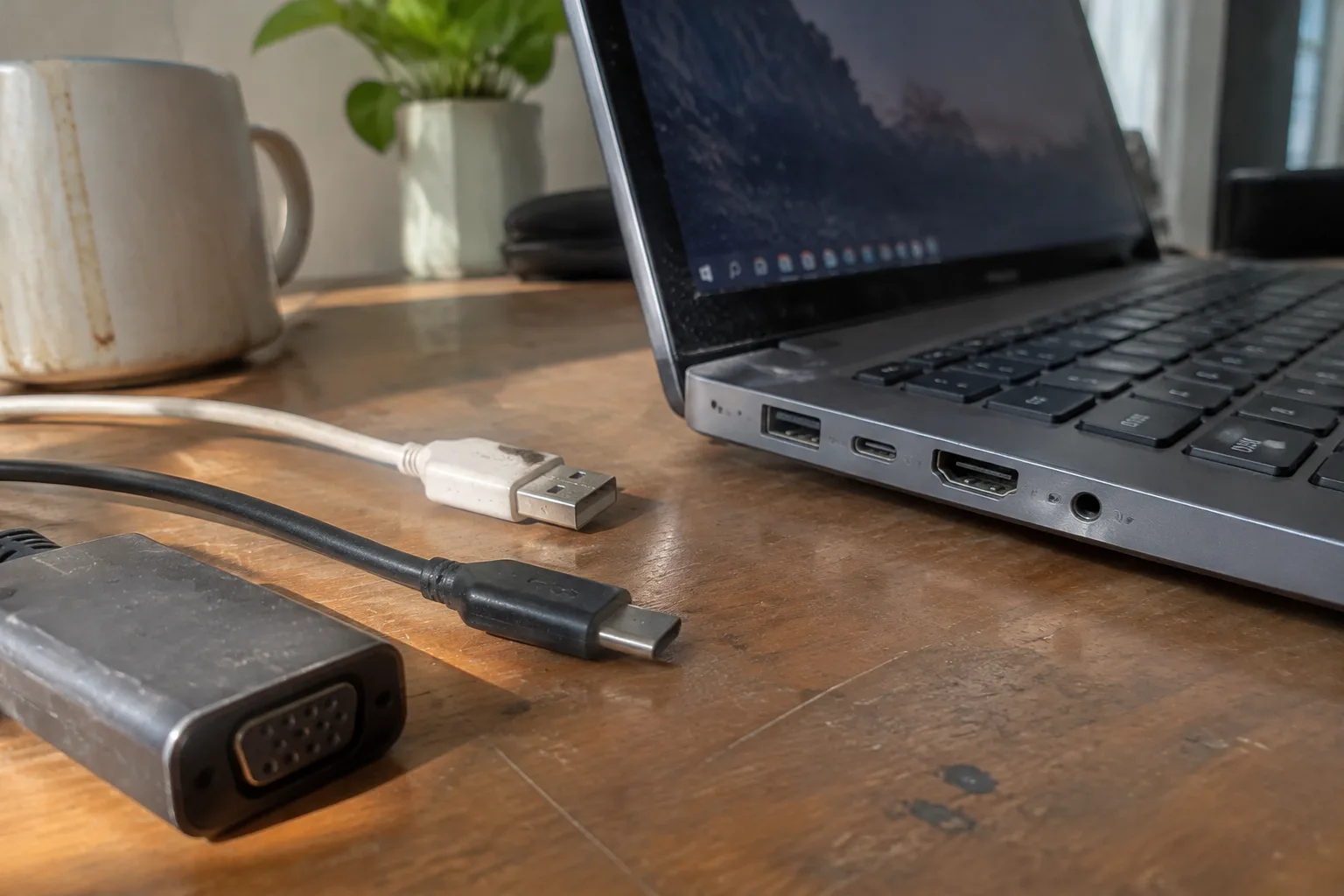
The spec sheet for a modern laptop reads like a customs form from a country that no longer exists. HDMI 2.1. USB4. Thunderbolt 4. USB-C 3.2 Gen 2x2. A microSD slot that accepts cards the size of a fingernail. A 3.5 mm jack that has survived four hardware generations. Buyers squint at the row of tiny openings along the chassis edge and assume the machine with the most holes is the most capable. That assumption costs money and produces a laptop covered in ports nobody plugs into twice.
The honest accounting starts with a simple question: which connections does a person actually insert during a normal week? For most buyers, the answer is embarrassingly short. A charger. A monitor cable, maybe. A pair of headphones. Perhaps a card reader twice a year. Everything beyond that is insurance against a scenario that may never arrive.
The charger is not a port, and that changes the math
The single most-used connection on any laptop is the one that feeds it power, and this is where the port conversation quietly gets complicated. Machines that charge over USB-C can share a cable with a phone, a tablet, a portable battery, a monitor. Machines that charge over a proprietary barrel connector need their own brick, their own cable, and a replacement ordered from the manufacturer when the original frays.
USB-C charging has become the sane default across most of the market, but wattage matters. A 65-watt adapter will run an ultraportable and struggle with a gaming laptop that wants 230 watts. The port looks identical; the power behind it does not. A buyer comparing two machines with identical USB-C arrays should check the wattage each port can accept before assuming they are equivalent.
A laptop that charges over USB-C also tends to travel lighter. One adapter covers the phone, the laptop, and the earbuds. That single change can remove a pound of cables from a bag, which matters more on a Tuesday morning commute than any benchmark score.
HDMI remains the one cable every conference room trusts
Wireless casting has been almost ready for a decade. In practice, a hotel conference room, a client's boardroom, a university lecture hall, and a rented event space will each present a different flavor of display connection, and the only one that works everywhere without a dongle is HDMI.
The port costs almost nothing to include and takes perhaps six millimeters of chassis edge. Laptops that drop it in favor of "USB-C only" push the user toward a dongle that lives in a drawer until the morning it is needed and cannot be found. For anyone who presents on unfamiliar screens, HDMI earns its slot. The version matters less than the presence: HDMI 2.0 handles 4K at 60 Hz, which covers nearly every conference display in service.
There is a small but real pleasure in arriving at a meeting, opening the lid, and plugging in a cable that simply works. No pairing menu, no firmware handshake, no waiting for the projector to recognize a device.
Thunderbolt and USB4 buy speed nobody notices until they do
Thunderbolt 4 and USB4 share the same physical connector and much of the same underlying silicon, and the marketing around them has been a mess. The practical difference for a buyer is bandwidth: both can carry data at 40 gigabits per second and drive an external display, and Thunderbolt 4 mandates a minimum level of capability that USB4 does not always guarantee.
For a person who plugs in a mouse and a flash drive, the difference between USB 3.2 and Thunderbolt is invisible. For a photographer pulling a 128 GB card through a reader, or an editor shuttling footage to an external SSD, the gap shows up as minutes saved per transfer. The port pays for itself only for buyers who move large files regularly.
The other use case is the docking station. A single Thunderbolt cable can carry power, display, Ethernet, audio, and USB in one strand, which turns a laptop into a desktop with one plug at the end of the day. That setup is genuinely transformative for anyone who works at a desk and travels with the same machine. It also depends on the laptop's port supporting the full standard, not a stripped-down variant.
The 3.5 mm jack refuses to die for good reasons
Headphone jacks have been removed from laptops with the same solemn language used for aircraft tray tables and optical drives. The removal saves a sliver of internal space and pushes users toward Bluetooth, which introduces latency, a battery to monitor, and pairing menus that fail at the worst moment.
For anyone who takes calls, edits audio, or simply prefers wired headphones that never need charging, the jack remains the most reliable audio connection on the machine. Its absence is rarely a dealbreaker, but its presence is a small daily kindness. A buyer who uses wired headsets should check the spec sheet with more care than the marketing photographs.
Ethernet survives in the buildings that need it
Wi-Fi has improved to the point that most home and office networks no longer require a cable. Some buildings, however, still run on wired connections: older offices, hotels with congested access points, laboratories, and any room where the walls are thick enough to defeat a 5 GHz signal.
Full-size Ethernet ports have largely vanished from thin laptops, replaced by a folding flap or a USB-C adapter. The folding flap design, common on some business models, is a clever compromise that keeps the profile thin while accepting a standard cable. It is also a hinge that will eventually loosen. Buyers who need wired networking should weigh a built-in flap against a dongle that can be replaced cheaply.
SD card slots are a specialist's port wearing a generalist's label
Camera owners know the ritual: pull the card, slot it into the laptop, transfer, eject, return. A built-in SD reader turns that ritual into a ten-second habit. Everyone else has not touched an SD card since the last digital camera was retired.
The port costs a few dollars and a few millimeters, and its presence on a laptop signals the machine's intended audience more clearly than any marketing copy. Photographers, videographers, and drone pilots should treat an SD slot as close to mandatory. The rest of the market can ignore it without consequence, though a cheap USB-C reader in a bag covers the occasional need.
The dongle drawer is a tax on thinness
Every port removed from a laptop migrates to a dongle, and every dongle lives in a small pouch that lives in a bag that lives in a drawer. The pouch accumulates adapters for HDMI, Ethernet, SD cards, and USB-A, and the user learns to carry it everywhere, which defeats the purpose of a thin machine.
The dongle tax is not just financial. It is cognitive. A person reaching for a laptop to join a call must remember the adapter, find it, plug it in, and hope the display handshake works. Each step is small; together they turn a two-second action into a two-minute ritual. A laptop with the right ports built in removes the ritual entirely.
The counterargument, common among designers and engineers, is that a single USB-C ecosystem is cleaner and more future-proof. That argument holds for buyers who live entirely inside modern hardware. It fails for anyone whose work touches a projector, a legacy peripheral, or a card reader from a camera bought five years ago.
USB-A still connects half the world's peripherals
The rectangular USB-A port is two decades old and still the connector on most mice, keyboards, thumb drives, printers, and older audio interfaces. Its removal from thin laptops has been gradual and, for many buyers, painless, because Bluetooth and USB-C alternatives exist for nearly everything.
For a person with a favored mechanical keyboard or an older drawing tablet, however, USB-A remains the only way in. A single USB-A port on a laptop is a small concession that saves a dongle and a headache. Two is generous. None is a statement of intent about the buyer's peripheral collection.
A buying checklist that fits on an index card
The practical method is to list the cables and devices used in a typical week, then match that list against the spec sheet. A charger, a pair of headphones, a monitor cable, and a thumb drive cover the needs of most buyers. Anyone who presents regularly adds HDMI. Anyone who edits photos or video adds an SD slot and a fast USB-C or Thunderbolt port. Anyone who works in an older office adds Ethernet.
The list should be honest about frequency. A port used twice a year does not justify a heavier machine, but a port used twice a week does. The buyer who writes the list before opening the product page will find the decision considerably simpler than the spec sheet suggests.
There is one more check worth making: the arrangement of ports along the chassis. Ports clustered on the right edge collide with a right-handed mouse. Ports on the back are convenient for a desk but awkward on a lap. A laptop with a generous port selection arranged badly is still a laptop that annoys its owner every day.
The port selection is a statement about who the laptop is for
Two laptops can carry identical processors and screens and still be built for entirely different people, and the ports are where that difference shows. A machine with two USB-C ports and a headphone jack is aimed at someone who lives in a browser and a cloud drive. A machine with HDMI, Ethernet, an SD slot, USB-A, and a barrel charger is aimed at someone who plugs into the physical world.
Buyers who read the port row as a design choice rather than a checklist will make better decisions. The question is not which laptop has the most ports. The question is which laptop has the ports that match the cables already in the bag, and which leaves the fewest adapters rattling around in a drawer.
The buyer who answers that question honestly tends to keep the laptop longer, complain about it less, and spend the saved money on the one accessory that actually improves the work: a monitor large enough to see two windows at once.