The minimum system requirements printed on a video editor's box are a floor, and floors are for standing on, not living on. A machine that meets them will launch the software. It may even play back a clip. Then the timeline fills up, a color grade lands on top of a warp stabilizer, and the whole thing turns into a slideshow of the editor's own face waiting for a render bar. Buying decisions made off that sticker are how people end up with a $70 license and a $1,400 regret.
What follows is a checklist for the moment before money changes hands. Not a buyer's guide to which editor is best, which is a different and much more tribal argument. This is about the machine underneath, the files going into it, and the workflow the software will be asked to survive.
The Sticker Specs Are Written for the Demo Project
Every editor ships with a sample project, and the sample project is engineered to feel effortless. Short clips, light effects, a tidy little sequence that renders in seconds. The system requirements are essentially calibrated to that demo. Real work is longer, messier, and stacked with the things that actually eat a processor alive: noise reduction, stabilization, multicam sync, and any effect with the word "AI" in its name.
The practical move is to find the recommended specs, not the minimum, and then treat even those with suspicion. A recommended spec sheet usually reflects a competent machine for ordinary editing, which is a useful baseline. It rarely reflects a machine that will happily chew through 4K footage with three LUTs and a speed ramp.
Codec Support Is Decided by the Camera, Not the Editor
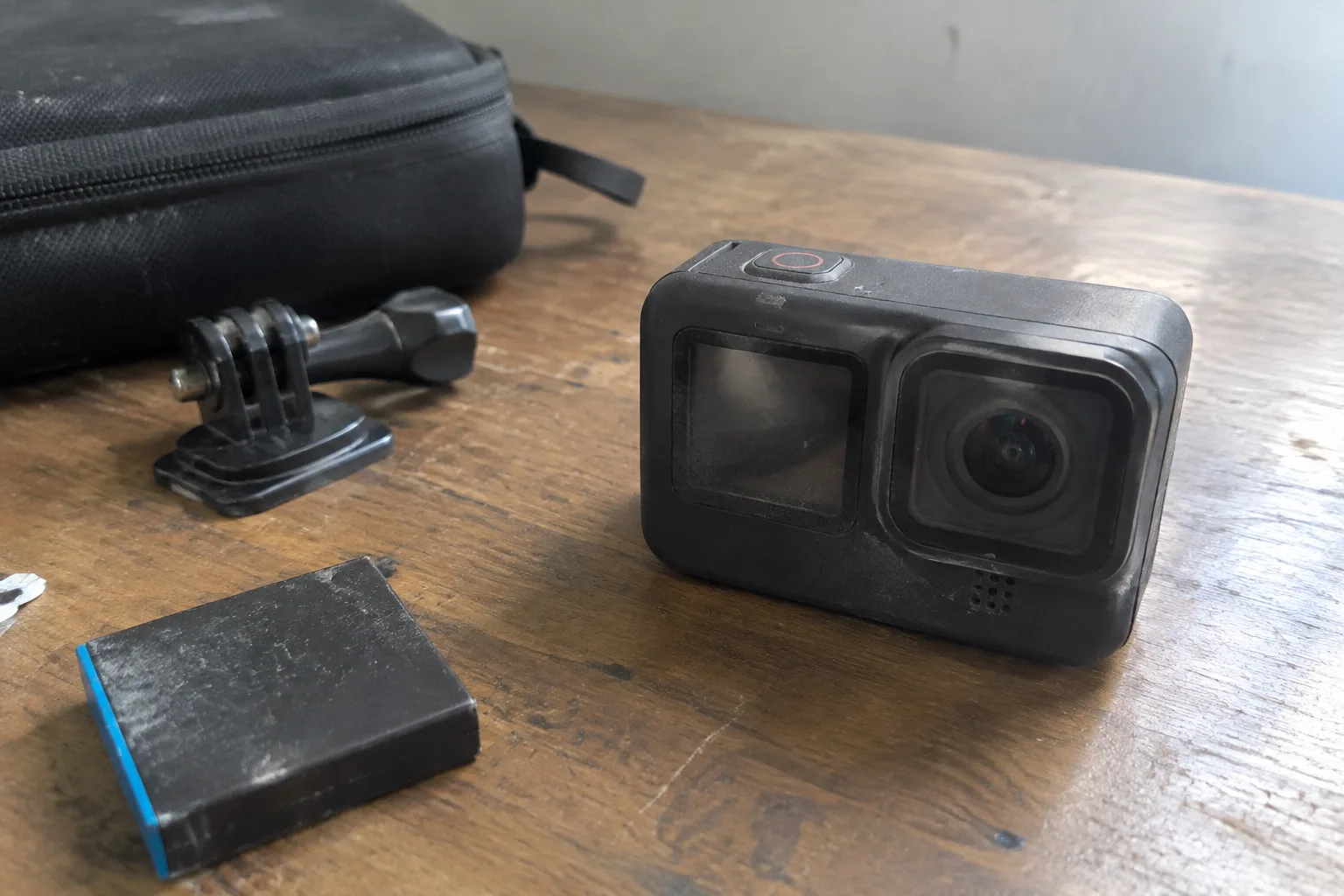
This is the item most often skipped, and it is the one that causes the most expensive mistakes. The editor will list supported formats, and the list will look generous. The question is what the camera in hand actually records, and whether the machine's graphics hardware can decode it in real time.
Consumer cameras and phones increasingly shoot in HEVC, which is efficient on storage and punishing on older hardware. Some mirrorless bodies record in 10-bit log formats that demand more from the decoder. A computer that handles an H.264 file from a five-year-old camcorder without complaint can choke on the same duration of 10-bit HEVC from a current phone. Before buying anything, pull a real clip off the actual camera and check whether the editor's documentation names that codec, and whether the graphics card handles hardware decoding for it.
Proxy workflows exist and they work, but they add a step to every project and a chunk of storage to every drive. A person who plans to lean on proxies for every single clip has bought the wrong machine, not a clever workaround.
RAM: The Number That Matters Less Than It Used To, and More
Sixteen gigabytes is the modern entry point and it is a cramped one. Thirty-two is the comfortable middle for 4K work. Sixty-four starts to feel like headroom for multicam and heavy compositing. Those are the broad bands, and they hold up well across most editors.
The subtler point is that RAM cannot be added later on many laptops, and on some compact desktops it is soldered or buried behind the motherboard. A machine bought with 16 GB and no upgrade path is a machine capped at 16 GB for its entire life. That is the spec to overbuy at purchase, because it is the one that cannot be fixed afterward.
GPU Acceleration Has a Short List of Names
Video editors lean on the graphics card for rendering, effects, and increasingly for machine-learning features like auto-reframe and speech-based text generation. The support is not universal. Editors tend to optimize for one or two GPU families more deeply than others, and a card that runs games beautifully can sit nearly idle inside an editor that prefers a different vendor.
Check the editor's own published list of supported and recommended GPUs, and check it for the specific version being bought, since support shifts between releases. Integrated graphics will run a lightweight editor for casual trimming. Anything involving effects, color, or 4K timelines wants a discrete card with a few gigabytes of its own memory, and the editor's documentation will usually say so in plain language.
Storage Math: The Figure Nobody Budgets For
A single hour of 4K footage from a consumer camera can run to tens of gigabytes depending on bitrate and codec. Add proxies and that roughly doubles. Add a second project that reuses some of the same clips and the drive fills faster than expected. A 512 GB laptop will hold a few projects and then start negotiating.
The working setup most editors converge on is three tiers: a fast internal drive for the operating system and software, a fast external SSD for active project files and cache, and a large slower drive for archives and finished exports. The checklist item is whether the machine has the ports to attach that second and third drive without a dongle chain. Thunderbolt or USB-C with solid throughput earns its keep here.
Display: Color Accuracy Beats Resolution
A 4K screen is pleasant and largely irrelevant to whether an edit looks right. What matters is whether the panel can be trusted. Cheap laptop displays oversaturate, clip highlights, and shift color with viewing angle, which means the grade looks fine on the editing machine and wrong on every phone and television it reaches.
Look for coverage of a recognized color space, typically sRGB or DCI-P3, stated as a percentage. Look for a panel that can be calibrated. A modest 1080p screen that holds its colors is a better editing display than a dazzling 4K panel that lies. The resolution question mostly matters for screen real estate, and that is what a second monitor solves more cheaply than a premium laptop panel.
The Heat and the Battery Question
Rendering is sustained load, and sustained load is where thin laptops reveal themselves. A machine that stays cool for a ten-minute export can throttle hard on a forty-minute one, stretching the render and aging the components. Reviews that measure export times on short clips miss this entirely.
Battery life is the companion issue. Editing unplugged drains fast, and many laptops reduce performance on battery to protect runtime. The realistic expectation is that serious editing happens tethered to a wall outlet, which makes portability a question of where the machine can go, not how long it lasts away from power.
Operating System and the Long Upgrade Tail
Editors drop support for older operating systems on their own schedule, and the schedule is often faster than the hardware's useful life. A machine that runs the current release comfortably may be locked out of the next major version. Check the editor's current OS requirement and, if the vendor publishes a roadmap, how far forward it extends.
This matters most for anyone buying used. A three-year-old workstation at a tempting price can be a fine machine and still be one OS release away from unsupported. The checklist question is not whether the software runs today, but whether it will run after the next forced update.
The Trial Project That Answers Everything
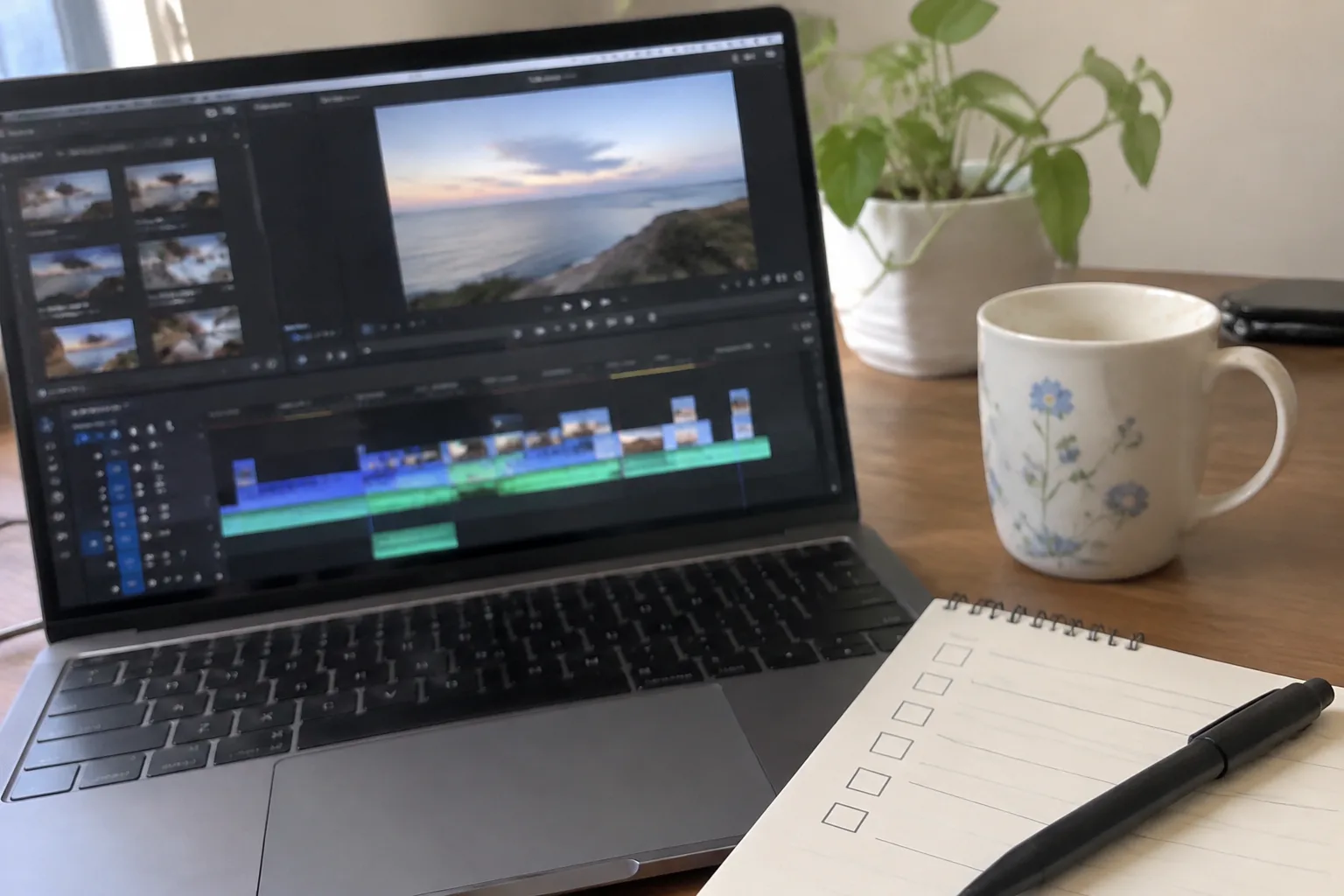
Every major editor offers a free trial, and the trial is the real system requirement test. Install it, import ten minutes of footage from the actual camera, stack a color grade, a stabilization pass, and a title on the timeline, and export. Watch where it stumbles. That single exercise surfaces the codec problem, the GPU gap, the RAM ceiling, and the thermal throttle all at once, in the exact conditions the machine will face in daily work.
Do this before the return window closes. A spec sheet is a claim. An export bar that crawls across a 4K timeline for eleven minutes is evidence, and evidence is what the purchase should rest on.