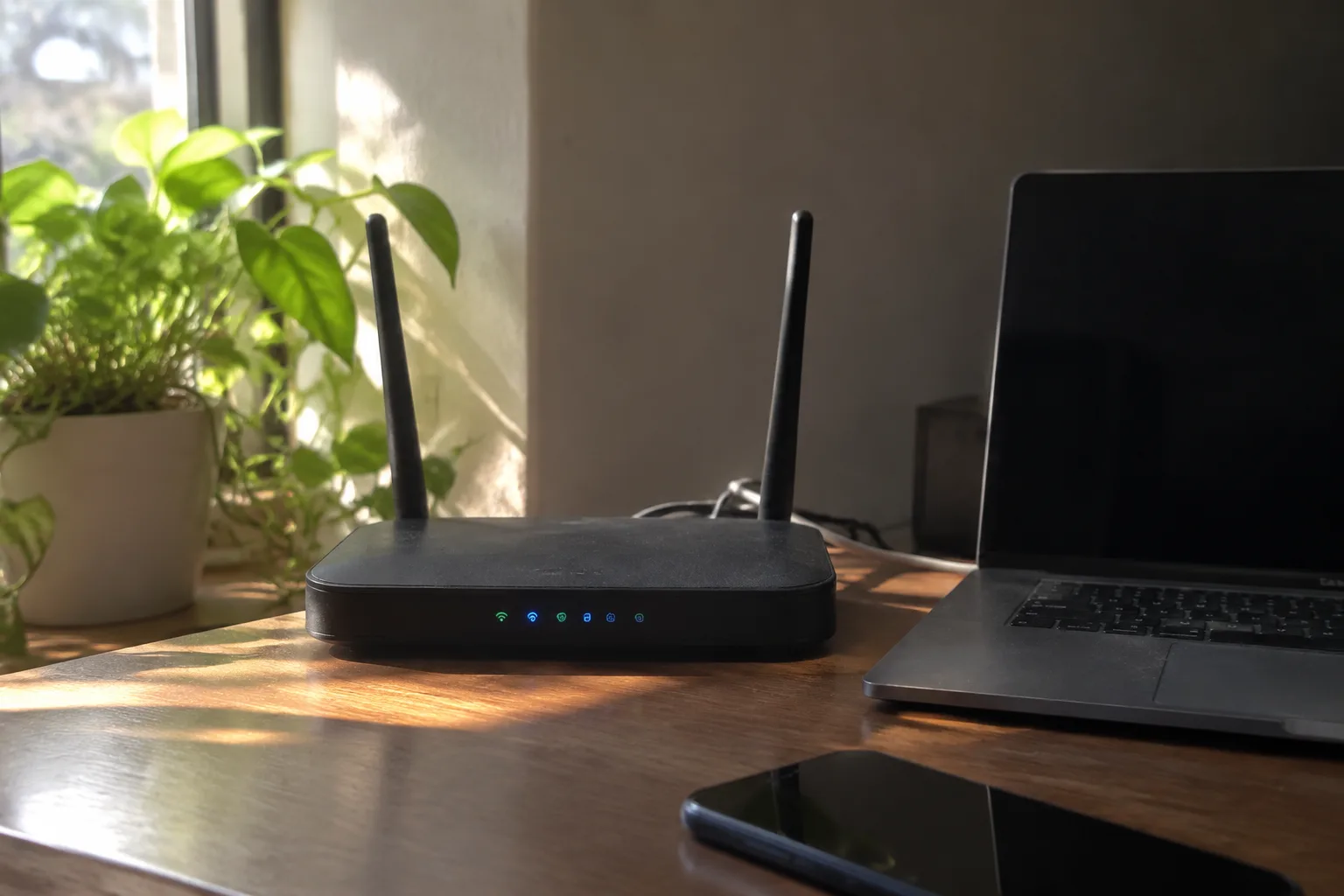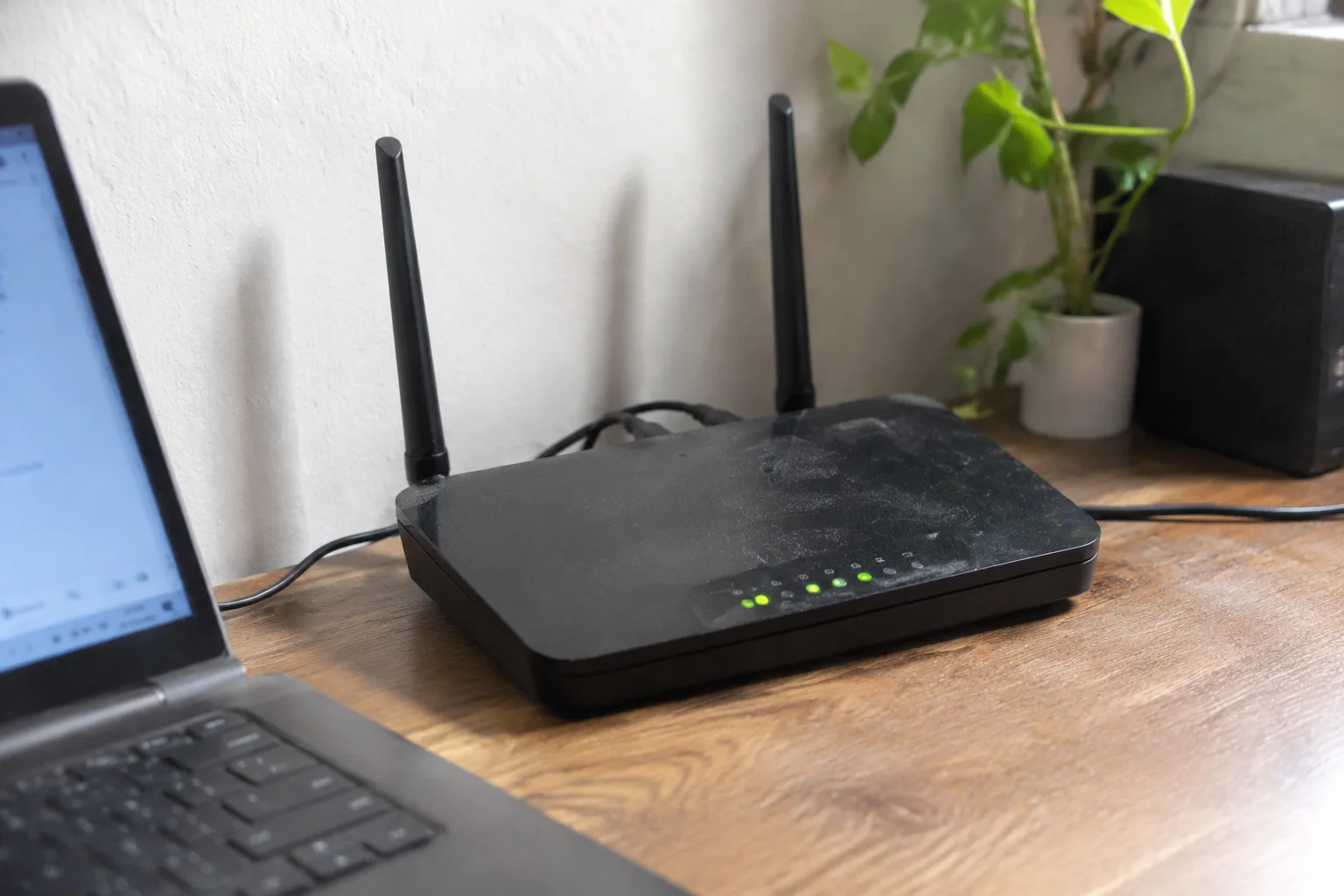
A router with a VPN client built into it is a small, unglamorous box that changes the shape of a household's internet. The appeal is easy to state: instead of installing an app on each phone and laptop and remembering to switch it on, the router itself carries the encrypted tunnel, and every device that connects to the home network rides along without knowing it. That promise is real. The execution is where the details bite.
Most home routers sold by internet providers cannot do this at all. The firmware is locked down, the CPU is weak, and there is no VPN client screen anywhere in the admin panel. The routers that can do it fall into a few camps: consumer models from Asus, Netgear, and TP-Link with built-in client support; travel routers from GL.iNet that ship with it enabled; and DIY boxes running open firmware such as OpenWrt or pfSense on a small x86 machine. Each camp has a different set of tradeoffs, and the tradeoffs matter more than the setup steps.
What the router actually does with the tunnel
A VPN client on a router opens an encrypted connection to a VPN server somewhere else, then routes the household's outbound traffic through that connection. To the ISP, the traffic looks like one long encrypted stream to a single IP address. To websites, the household appears to be browsing from the VPN server's location. To devices on the home network, nothing has changed: they still connect to the same Wi-Fi, still get the same local addresses, still reach the printer.
That last part is the quiet benefit. A phone with a VPN app has to be told when to turn the tunnel on and when to leave it off, and the phone's owner has to remember. A router does the deciding once, for everything, and the decision holds until someone changes it. Guests who join the Wi-Fi are covered without being asked. A smart TV that has no VPN app at all is covered. A work laptop that forbids VPN apps is covered, which is either convenient or a compliance problem depending on the employer.
The hardware question comes first
Before any configuration, the router has to be capable of running the tunnel at the household's actual internet speed. This is the step most guides skip, and it is the step that decides whether the project is worth starting. VPN encryption is CPU work. A router with a modest dual-core chip can push a tunnel at maybe 50 to 100 megabits per second, sometimes less. A household on a 500 megabit fiber plan that installs a VPN client on a midrange router will watch its speed test numbers fall by a factor of five or more, and the drop will be blamed on the VPN provider when the router is the bottleneck.
The routers that handle a gigabit tunnel tend to have faster ARM chips or dedicated crypto acceleration, and they cost more. The DIY route, a small fanless x86 box with two network ports and OpenWrt or pfSense, handles a gigabit tunnel comfortably for a price that is often lower than a high-end consumer router. It is also more work to set up and has no vendor support line. The choice between these paths is the real fork in the road, and it should be made with a speed test of the existing connection in hand.
The provider has to support router clients
Not every VPN service works on a router. The provider needs to publish configuration files or credentials for OpenVPN or WireGuard, the two protocols most router firmware supports. WireGuard is the faster and simpler of the two, and it has become the default on newer router firmware for good reason: it connects quickly, uses less CPU, and its configuration is short enough to read. OpenVPN is older, heavier, and more widely supported on older routers.
Some providers offer a dedicated router app or a preconfigured firmware image. Those are convenient and worth using when they exist, but they also lock the household into one provider. A router configured with plain WireGuard files can switch providers by swapping a config, which is a small freedom worth preserving.
There is also the matter of what the provider logs and where its servers sit. A router tunnel sends every device's traffic through one exit point, so the provider's logging policy now covers the whole household rather than one laptop. That is a heavier trust decision than installing an app on a phone, and it deserves a few minutes of reading before any configuration begins.
A working setup, in order
The sequence that works on most capable routers looks like this. Log into the router's admin page and update the firmware first, because VPN client support is often added or fixed in later releases. Confirm the router has a VPN client section, usually under a heading like VPN, Advanced, or Security. If the section does not exist, the router cannot do the job and no amount of configuration will change that.
Next, generate the tunnel credentials at the VPN provider. For WireGuard, this means creating a key pair and downloading a configuration file that contains the server address, the private key, and the allowed IP ranges. For OpenVPN, it means downloading a .ovpn profile and any certificate files. Keep these files somewhere private; they are the keys to the tunnel.
Then import the configuration into the router. WireGuard setups usually have an import button that accepts the file directly. OpenVPN setups may require pasting the profile text and uploading certificates separately. Save the profile, then enable the client. Most routers will show a connection status light or a log line once the tunnel is up.
The next step is a speed test from a device on the network, compared against a speed test with the VPN client disabled. That comparison is the honest measure of whether the setup is viable. A drop of 10 to 20 percent is normal. A drop of 80 percent means the router is the bottleneck and the hardware decision needs revisiting.
The routing policy is where households get surprised
A router VPN client usually offers a policy mode: send all traffic through the tunnel, or send only some of it. The all-traffic mode is simple and covers everything, including the smart TV and the game console. The selective mode is where things get interesting, and where most of the real configuration lives.
Selective routing matters because a full-tunnel setup breaks things. Banking apps sometimes flag logins from unfamiliar locations. Streaming services detect VPN exit points and refuse to play. Online games add latency because the traffic takes a longer path to the server. A household that flips the whole network through a foreign exit point will discover these problems one by one, usually on a weekend evening when someone wants to watch a show.
The fix is to route by device or by destination. Many routers let the admin exclude specific devices from the tunnel, so the smart TV and the game console stay on the direct connection while laptops and phones go through the VPN. Others let the admin route only specific domains or IP ranges through the tunnel, which is more surgical but more work. The right answer depends on why the tunnel exists in the first place. A household using it for privacy on public Wi-Fi has different needs from one using it to reach a work network or to appear in another country for a streaming catalog.
DNS leaks and the kill switch
Two settings separate a competent router VPN setup from a cosmetic one. The first is DNS. If the router still hands out the ISP's DNS servers to devices, then every lookup leaks the household's browsing destinations to the ISP even while the traffic itself is encrypted. A proper setup points DNS at the VPN provider's resolvers or at a privacy-respecting public resolver, and it forces all DNS queries through the tunnel.
The second is the kill switch. When the tunnel drops, a router without a kill switch falls back to the direct connection, and traffic flows unencrypted without any warning. A kill switch blocks outbound traffic until the tunnel comes back. On a router this is sometimes a checkbox and sometimes a firewall rule that has to be written by hand. Either way, it is the difference between a tunnel that fails safe and one that fails open.
Who this actually suits
The setup suits a household with several devices, at least one of which cannot run a VPN app, and a reason to keep a persistent tunnel. It suits a remote worker whose employer requires VPN use on a home network but whose work laptop blocks third-party apps. It suits a household that wants guests covered without explaining anything. It suits anyone who has already decided to use a VPN and is tired of remembering to turn it on.
It does not suit a household on a fast fiber plan with a midrange router, unless the router is upgraded first. It does not suit a household that mainly wants a VPN on one laptop for occasional public Wi-Fi use, because an app is simpler and cheaper. And it does not suit a household that expects the tunnel to be invisible: the streaming failures, the banking flags, and the latency on games will all show up, and someone will have to manage the routing policy to keep them from becoming a weekly complaint.
The maintenance nobody mentions
A router VPN is not a set-and-forget appliance. Router firmware gets security updates, and skipping them leaves the tunnel and the whole network exposed. VPN providers rotate server addresses, and a config that worked in January can stop connecting in June. WireGuard keys can be revoked or regenerated. The kill switch rule can be silently overwritten by a firmware update. Someone in the household has to own these chores, and that person is usually the one who set the thing up.
The realistic picture is a Saturday afternoon of configuration, a few evenings of troubleshooting the devices that break, and then a monthly check that the tunnel is still up and the firmware is current. That is a fair trade for a household that wants the coverage. For a household that wants to install something and forget it, a router VPN will disappoint, because the forgetting part is exactly what it cannot offer.