Two-factor authentication has a dirty little secret that the security industry rarely says out loud: the second factor is often the weakest link in the chain, and it is the one most likely to leave a person stranded outside their own digital life. The math behind the second factor is sound. The implementation is where things fall apart.
A survey of the wreckage looks roughly like this. A phone gets stolen on a Tuesday. A backup code sheet sits in a drawer in another city. An authenticator app lives on a tablet that has not been charged since March. The recovery email address points to an account that also requires two-factor authentication, which sends a code to the stolen phone. The loop closes, and the person sits on the wrong side of it.
None of this argues against setting up two-factor authentication. The case for turning it on is overwhelming and has been for years. The project worth doing is setting it up so the failure modes are survivable. That takes an afternoon of unglamorous housekeeping, and most people skip the housekeeping because the setup screen asks for a phone number and then declares victory.
The recovery problem comes before the setup problem
Before touching any settings screen, a person should be able to answer one question: if the primary device vanished tonight, what would the path back into each account look like, step by step? Most people cannot answer this, and the honest answer is often "I would call my brother, who set it up for me in 2019." That answer is a lockout waiting for a date.
The recovery path deserves as much attention as the authentication method itself. For most major services, recovery runs through an email address, a phone number, or a set of one-time backup codes. If the recovery email is the same account being recovered, the loop is broken by design. If the recovery phone number is the same phone running the authenticator app, the two factors collapse into one device.
The fix is unromantic: make sure the recovery email for an account is an account the person does not rely on for anything else, and make sure it has its own two-factor authentication and its own backup codes. A quiet, boring email address that exists mostly to receive recovery links is a valuable piece of infrastructure.
Authenticator apps beat SMS for one reason that matters
Text-message codes get a bad reputation, and some of it is deserved. The known weaknesses of SMS delivery are real: number porting scams, SIM swap fraud, and interception on poorly secured networks. That said, the working assumption for most people should be that SMS two-factor authentication is still vastly better than no two-factor authentication.
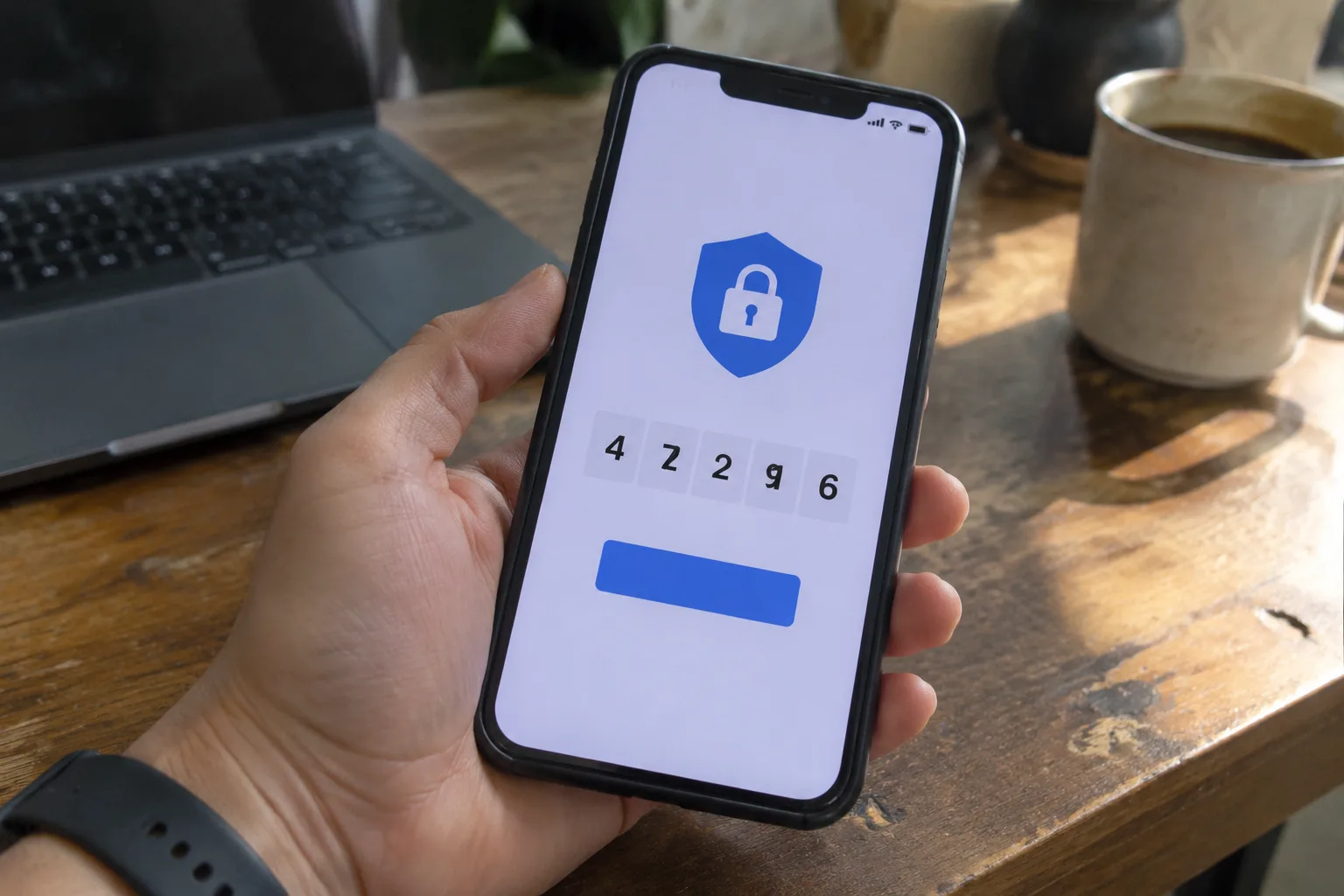
Authenticator apps have a different practical advantage that rarely gets mentioned: they work without a cell signal. A code generated on the device itself does not care whether the phone has service, whether the carrier is having a bad day, or whether the person is on a plane. That reliability matters more day to day than the security upgrade, though the security upgrade is real too.
An authenticator app also survives a SIM swap, which is the failure mode that turns a phone number into a liability. The tradeoff is that the app lives on a specific device, and the device can be lost, broken, or wiped. This is why the setup of an authenticator app is only half the job.
The backup code sheet nobody prints
Every major service that offers two-factor authentication also offers a set of backup codes, usually ten single-use codes that can stand in for the second factor when the primary method is unavailable. These codes are the single most useful lockout insurance available, and they are the most frequently ignored feature in the entire setup flow.
The codes get ignored because the screen that presents them is a dead end. There is nothing to install, nothing to configure, and nothing that confirms the work was done. The codes appear, the person glances at them, and the browser tab closes. Six months later, the same person is hunting through old screenshots on a phone that has since been replaced.
The fix is to treat the codes like a spare key. Print them, or write them on an index card, and put them somewhere that is not the same place as the primary device. A wallet, a fireproof box, a sealed envelope in a desk drawer at a different address: any of these works. The point is physical separation, because a backup code stored on the phone that is being backed up is not a backup.
One more detail that catches people: the codes are typically single-use. After a recovery, the remaining codes still work, but the used one is dead. Some services regenerate the entire set after a recovery; others do not. It is worth checking which behavior applies and reprinting the sheet if the service invalidates the old batch.
Hardware keys and the second-device question
Hardware security keys, the small USB or NFC devices that authenticate by touch, offer the strongest resistance to phishing and remote takeover. They are also the method most likely to produce a lockout story, because they are physical objects that get left in laptops, lost in coat pockets, or simply forgotten at home when travel plans change.
The standard advice from security researchers is to register at least two hardware keys per account, keep one at home and one somewhere else, and treat the backup codes as a third line of defense. That advice is correct and also frequently ignored, because buying two keys feels excessive until the first one is lost.
For most people, hardware keys are overkill. An authenticator app plus printed backup codes covers the overwhelming majority of realistic threats. Hardware keys earn their place for high-value accounts: primary email, password managers, financial accounts, and anything that controls other accounts through recovery. The person who manages a family's digital life should probably own one and register it on the accounts that would be catastrophic to lose.
Which accounts to protect first
The question of where to start matters because doing everything at once leads to half-finished setups and abandoned recovery sheets. The order should follow the blast radius of a compromise, not the frequency of use.
Primary email comes first. Nearly every other account in a person's life can be reset through the primary email address, which makes it the master key. A compromised email account can be used to reset passwords on banking, social media, and shopping accounts in sequence. Protecting the email account is the single highest-leverage move available.
Password managers come second, for the same reason. The vault holds credentials for everything else, so it deserves the strongest second factor available and the most careful recovery setup. Financial accounts come third, followed by social media accounts that could be used to impersonate the person to friends and family. Everything else can wait.
The old phone that becomes a recovery tool
An underused trick in the lockout-prevention toolkit is the retired smartphone. Most households have a drawer containing a phone that was replaced two or three years ago. That device, wiped and charged, can serve as a dedicated authenticator for the most important accounts, kept in a drawer at home and never carried around.
The setup is straightforward. Install the authenticator app on the old phone, register it as a second device on the accounts that matter, then put the phone on a charger once a month and leave it alone. If the primary phone is lost or stolen, the second device is already registered and waiting.
This approach works because authenticator apps run offline. The old phone does not need a SIM card, a data plan, or even a Wi-Fi connection to generate codes. It needs a working battery and the app installed. The phone becomes a hardware token that happens to also have a screen.
The password manager's own lockout risk
Password managers deserve special attention because they combine two risks in one product. The master password is the only way in, and the second factor often sits on the same phone the manager is installed on. A lost phone can mean losing access to every stored credential at once.
The mitigation is the same as everywhere else, with one addition. The master password should be written down somewhere physical, ideally in a sealed envelope stored with other important documents, because a forgotten master password is unrecoverable by design. The second factor should be an authenticator app on a separate device, and the backup codes should be printed and stored with the master password envelope.
The industry has spent years telling people never to write down passwords. For the master password of a password manager, writing it down and storing it physically is the responsible move. The threat model for a piece of paper in a locked drawer is very different from the threat model for a password reused across websites.
The quarterly drill that prevents the annual panic
Lockouts rarely happen because the setup was wrong. They happen because the setup was never tested and quietly decayed. A phone number gets changed, a recovery email gets abandoned, a backup code sheet gets thrown out during a move. The setup was fine on the day it was created and useless eighteen months later.
A short quarterly drill catches most of this. Pick one important account, log out of everything, and go through the full recovery path using only the backup materials: the printed codes, the second device, the recovery email. If anything fails, fix it. The drill takes twenty minutes and surfaces problems while they are still solvable.
The drill also tests the human part. Can the person find the backup code sheet? Is the second device still charged? Is the recovery email still accessible? These questions have a way of going stale, and the only way to know is to check.
The goal of all of this is a setup where the second factor does its job without becoming a single point of failure. That means two devices, printed codes in a drawer, a recovery email that is not the account being recovered, and a drill once a quarter. None of it is exciting, and all of it is what stands between a lost phone and a lost decade of digital life.