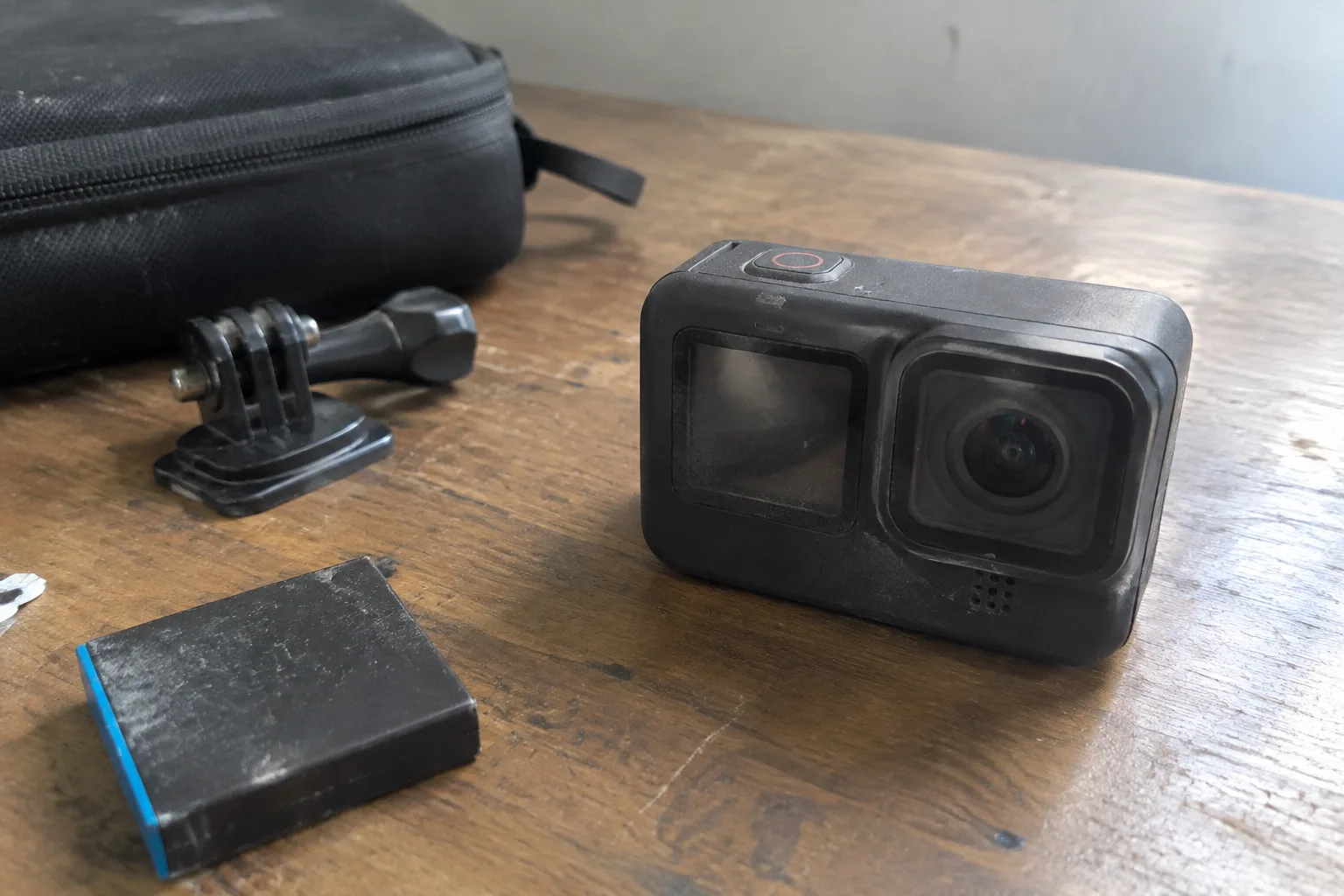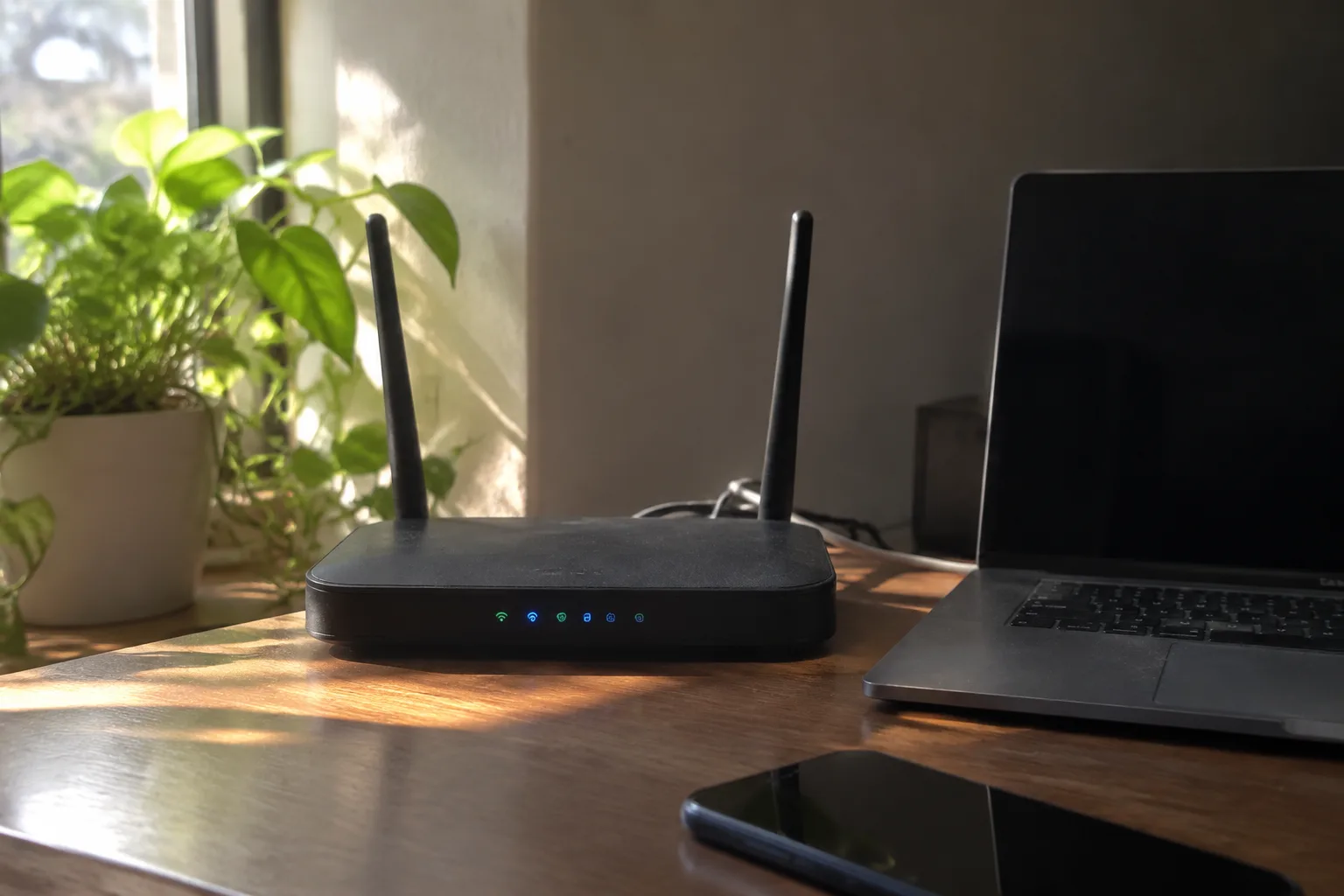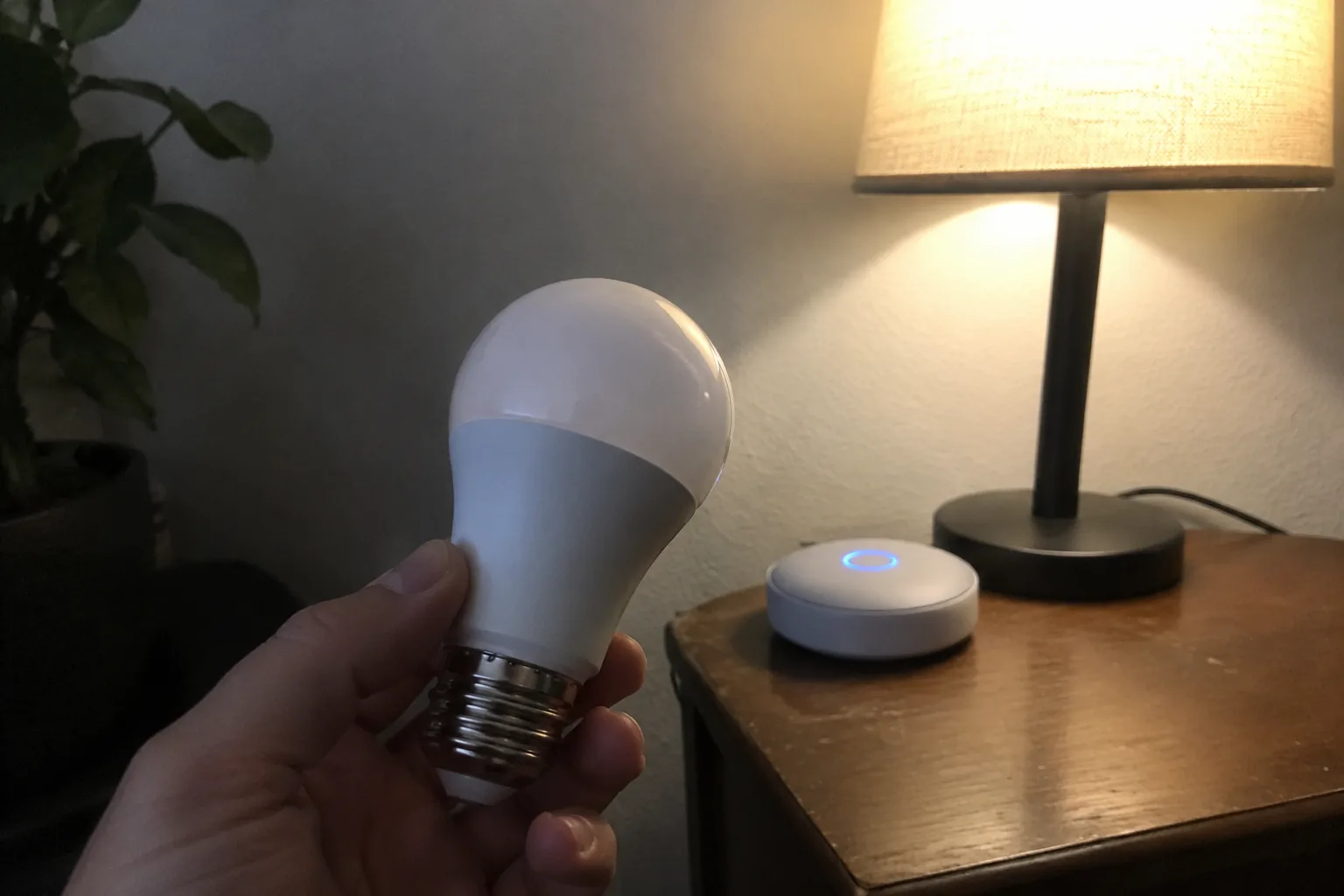
The bulb aisle at a hardware store has become a compatibility exam disguised as shopping. A shelf of frosted domes, each one promising warm light and app control, and behind almost every box a small print paragraph listing the radios inside: Wi-Fi, Bluetooth, Zigbee, Z-Wave, Matter. Buy the wrong one and the bulb still screws in and still lights up. It just never appears in the app, never joins the routines, never answers the hub. That is the failure mode worth designing around.
Smart bulbs fail at the hub for a narrow set of reasons, and nearly all of them can be checked before money changes hands. The work is in knowing which questions to ask, in which order, and which marketing words on the box mean nothing at all.
The radio inside the bulb decides everything
Every smart bulb contains a radio, and the radio determines which hubs and apps can talk to it. Wi-Fi bulbs connect straight to the home router, no hub required, which sounds ideal until a house has twenty of them competing for router slots. Zigbee and Z-Wave bulbs speak low-power mesh protocols and need a dedicated hub or a device acting as one. Bluetooth bulbs work within a room or so and rarely integrate with anything.
The label on the front of the box is often proud about the brand and quiet about the protocol. Flip it over. A bulb sold as "works with Alexa" may do so only through a specific Echo model with a Zigbee radio built in; the same bulb paired to a phone app alone will not join that mesh. That distinction is buried, and it is the whole ballgame.
Matter changed the rules, and the boxes have not caught up
Matter arrived as a common language, a promise that a bulb from one company would pair with a hub from another without a translator. In practice, Matter bulbs still ride on top of a radio underneath: a Matter-over-Thread bulb needs a Thread border router, and a Matter-over-Wi-Fi bulb needs stable Wi-Fi and a hub or app that supports Matter.
Plenty of hubs on shelves today handle Matter only partially, or handle it for some device types and not others. A bulb can carry the Matter logo and still fail to appear on an older hub that has not been updated. The logo certifies the protocol; it does not certify the specific pairing in a specific house.
Thread adds another wrinkle. A Thread border router is the bridge between the mesh and the home network, and the function is built into some smart speakers and some hubs but not others. A Matter bulb that needs Thread will sit dark until a border router exists in range. The box rarely says this in large letters.
Check the hub's device list before the bulb's feature list
The efficient order of operations runs backward from most shoppers' instincts. Start with the hub already in the house, open its app or support page, and find the official list of compatible bulbs. Every serious hub maker publishes one, and it is updated far more reliably than any retail box.
Search that list for the exact model number, not the brand. A hub that supports one bulb from a manufacturer frequently supports none of the others, because the manufacturer ships different radios under the same family name. Model numbers are printed on the bulb base or the inner flap, and they are the only identifier worth trusting.
When the list shows the bulb, buy with confidence. When the list omits it, treat the purchase as an experiment, and buy exactly one bulb first.
The one-bulb test that saves a return trip
Buying a single bulb before committing to a houseful is the cheapest form of due diligence available. Screw it in near the hub, run the pairing sequence, and watch what happens. A clean pairing takes under a minute on a good system. A pairing that stalls at "searching for device" or repeats a failure code is telling the truth about the whole product line.
Then run the bulb through a normal day. Set a schedule, trigger it from a voice assistant, and check whether it dims smoothly to a low level rather than dropping to a hard off. Some bulbs pair beautifully and then flicker at 5 percent brightness, a fault that only shows up after dark.
Reboot the hub with the bulb still paired. A bulb that vanishes after a hub restart and needs re-pairing will do so every time the power blinks. That behavior is a dealbreaker in a house with unreliable mains, and it is invisible on the box.
Wi-Fi bulbs and the router that quietly gives up
A Wi-Fi bulb is the simplest thing to set up and the easiest thing to overload. Consumer routers handle a finite number of simultaneous connections, and the count includes phones, laptops, televisions, and every bulb. Ten Wi-Fi bulbs in a house with a busy network is usually fine. Thirty is a different story, and the symptom is bulbs that drop offline at random and rejoin only after a router reboot.
Mesh protocols exist to solve exactly this. Zigbee and Thread bulbs form their own network and leave the router alone. In a large house, the difference shows up as reliability: a mesh bulb keeps answering months after installation, while a crowded Wi-Fi bulb goes silent and needs a power cycle.
The trade-off is real, though. A mesh bulb without a hub is a paperweight, and hubs cost money and occupy a shelf and occasionally need firmware updates of their own. A household with three bulbs and a decent router should probably stay on Wi-Fi. A household wiring an entire floor should not.
Local control versus the cloud, and why the difference appears at the worst time
Many bulbs route commands through the manufacturer's servers. The app talks to the cloud, the cloud talks to the bulb, and the bulb obeys. This works flawlessly until the internet goes down or the manufacturer retires the service, at which point the lights stop responding to the switch that has worked for years.
Local control keeps the logic inside the house. A hub that speaks the protocol directly, without a cloud round trip, keeps routines running during an outage and keeps working if the company changes its business model. The catch is that local setups demand more from the buyer: a hub, a protocol, and a little patience at setup.
Anyone who has watched a "smart" bulb become a dumb one after a service shutdown tends to prefer the local option afterward, and the preference is worth paying for up front.
Reading the box without believing it
The phrase "works with" on packaging has no fixed meaning. It can mean native support, it can mean support through a third-party skill, and it can mean support that requires a specific hub generation the buyer does not own. Treat the phrase as a claim to verify, not a fact.
The useful text on the box is smaller and duller: the protocol name, the model number, the required hub, and the wattage. A bulb rated for a dimmer switch behaves differently from one rated for a plain switch, and a bulb with a low wattage rating may not wake up properly on a circuit shared with other loads. These details decide whether the bulb works in the specific fixture where it will live.
Check the fixture too. Enclosed fixtures trap heat, and some bulbs are rated only for open air. A bulb that overheats will dim or fail early, and the failure looks like a software problem when it is a thermal one.
What the return policy reveals about the product
A generous return window on a smart bulb is a quiet signal. Manufacturers confident in their compatibility do not mind a customer testing one; manufacturers selling uncertain pairings would rather the buyer keep the box sealed. A store with a thirty-day no-questions return on lighting is a store worth using for the first bulb of any new protocol.
The practical sequence is short. Identify the hub and its supported models, buy one bulb of the exact model, pair it, restart the hub, run it through a dimming schedule, and only then buy the rest. Each step costs minutes and saves the trip back to the store. The bulb that lights up on the first try and still answers after a router reboot is the one worth buying by the case, and the box will never say so. The test will.