Free screen recorders have spent the past decade getting quietly, aggressively worse. The pattern is familiar to anyone who has gone looking for one: a program that once opened straight into a capture window now opens into a countdown, a watermark offer, a "Pro" nag screen, and a thirty-day trial clock. OBS Studio remains the exception, and that exception has warped the entire budget category around it. The free tier of screen recording on Windows and Mac now divides into three camps: OBS, which is genuinely free and genuinely complicated; the built-in tools from Microsoft and Apple, which are free and shallow; and a crowded middle of freemium apps that are free until a watermark appears in the corner of the export.
That middle tier is where most people actually land, and it is where the real decisions get made. A budget screen recorder, for the purposes of this piece, means something that costs nothing or close to it and does not put a logo on the finished file. The list below is short because the honest list is short. It covers the tools that survive contact with a real project: a tutorial with voiceover, a bug report that needs frame-accurate evidence, a lecture capture, a game clip with system audio.
OBS Studio and the Cost of Unlimited Power
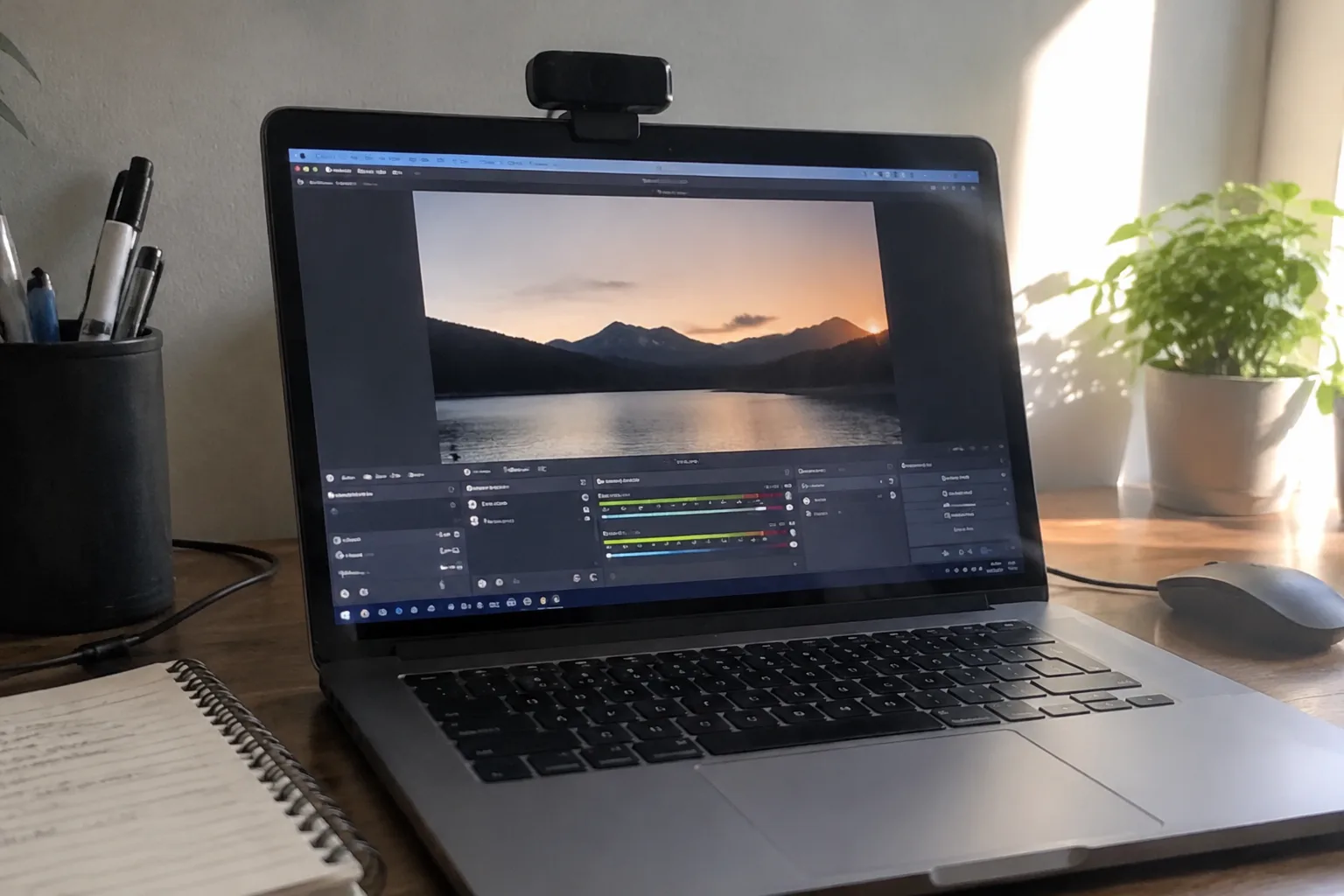
OBS Studio is free, open source, and runs on both Windows and Mac. It records the full screen, a single window, or a specific game, captures system audio and microphone on separate tracks, and streams to Twitch or YouTube without asking for a credit card. None of that is new information. What tends to get lost is the setup tax. The first launch presents an auto-configuration wizard, then a scene with a single source, then a settings panel with roughly forty tabs that matter to somebody and about six that matter to a beginner.
The audio routing is the sticking point. OBS records desktop audio and microphone audio as separate tracks by default, which is correct and useful and also means a first-time user can finish a twenty-minute recording and discover the microphone track is silent because the wrong device was selected. The fix takes two minutes once it is known. Discovering it takes an evening.
The other friction is the file size. OBS records to MKV or MP4 at whatever bitrate the encoder is set to, and a default high-quality preset can produce a file measured in gigabytes for a fifteen-minute capture. The remedy is to set the recording quality to "stream" or to lower the CQP value, which is not a phrase that appears in the wizard. OBS rewards patience and punishes hurry, which is why it remains the recommendation for anyone willing to spend one focused hour learning it and a poor fit for anyone who needs a recording in the next ten minutes.
Xbox Game Bar: The Windows Tool That Hides in Plain Sight
Windows ships with a recorder and almost nobody uses it. Xbox Game Bar opens with Win+G on Windows 10 and 11, and its capture widget records the active window or the full screen with a single button. It handles system audio and microphone, exports MP4, and adds no watermark. The catch is in the name: Game Bar records the focused application, and it will refuse to capture File Explorer or the desktop, which makes it useless for recording a file management tutorial or a settings walkthrough.
For everything else, it is startlingly good for the price. A person recording a browser-based demo, a game clip, or a video call has a working recorder two keystrokes away with no install. The recording length caps at two hours by default in some builds, and the output lands in a Videos/Captures folder that is easy to find. The interface is a floating overlay that can be dismissed, and the whole thing weighs nothing on system resources compared with OBS.
Game Bar's weakness is precision. There is no region selection, no webcam overlay, no annotation, and no way to pause and resume mid-recording. It is a hammer, and it hits the nail of "record this window now" perfectly. It is the wrong tool the moment a project needs a face in the corner or a cursor highlight.
macOS Screen Recording and the QuickTime Question
Apple's built-in recorder lives in two places, and the split confuses people. Shift+Command+5 opens the screenshot toolbar, which includes a record-entire-screen and record-selected-portion button, with options for microphone audio and a timer. QuickTime Player, under File > New Screen Recording, does roughly the same job with a slightly different interface. Both export clean H.264 files with no watermark. Neither captures system audio on its own, which is the single largest complaint about Mac screen recording and the reason third-party apps still sell.
Capturing internal audio on a Mac requires either a loopback driver such as BlackHole (free, open source, and fiddly) or a paid app. The built-in toolbar will record a microphone and the screen, and if the goal is a voiceover tutorial that is often enough. If the goal is a game clip with the game's own sound, the Mac's free tools will not deliver it without extra setup. This is a genuine gap in the platform, and it is worth knowing before a person spends an hour troubleshooting a silent recording.
The macOS recorder's other virtue is its restraint. It sits in the menu bar, it records what is selected, it stops when told. There is no account, no upsell, no telemetry prompt. On a modern Mac it is also hardware-accelerated and barely touches the battery compared with running OBS, which matters on a laptop away from a desk.
ShareX: The Windows Power Tool With a Learning Cliff
ShareX is free, open source, Windows-only, and does far more than record screens. It captures regions, windows, and full screens; it records video with audio; it uploads automatically to a destination of choice; it includes a screen ruler, a color picker, and an OCR tool. The recording module supports region selection, webcam overlay, and a straightforward hotkey setup. There is no watermark and no premium tier.
The cost is the interface. ShareX opens into a list of task types that looks like a settings menu from 2009, and the first recording requires a trip through the "Task settings" dialog to confirm the video source and audio device. Once configured, it is faster than OBS for quick region captures and lighter on resources. The community documentation is thorough but scattered across a wiki and a subreddit.
For a Windows user who records short clips regularly, ShareX is the best free option that no one talks about. For a one-off recording, the setup time is not worth it, and Game Bar wins by default.
Where the Freemium Recorders Actually Land
The apps that dominate search results for "free screen recorder" are mostly the same product wearing different skins. Loom, Screencastify, and their many cousins offer a free tier that caps recording length, caps resolution, and in several cases adds a visible watermark or a branded intro to exported files. Loom's free plan, for instance, limits recordings to five minutes and 720p, which is fine for a quick async message and useless for a lecture. The business model is honest about itself: the free tier is a demo, and the paid tier is the product.
That is not a scandal, but it does mean these tools do not belong on a budget list except with a caveat. A person who records five-minute bug reports for a team already using Loom should use Loom, because the sharing and commenting features are the point. A person who needs a clean file with no branding and no time limit should look at the tools above instead.
Matching the Recorder to the Job
The choice collapses quickly once the job is named. A long tutorial with separate audio tracks and scene switching: OBS. A quick game clip or browser demo on Windows with no install: Game Bar. A clean screen recording with voiceover on a Mac: the built-in toolbar. Short region captures on Windows with automatic upload: ShareX. A five-minute async video for a team already inside a freemium ecosystem: that ecosystem's free tier, watermark and all.
The mistake most people make is downloading OBS for a task that Game Bar would have finished in fifteen seconds, then abandoning the project because the first recording came out silent. The second most common mistake is trusting a freemium app's "free" label and discovering the watermark at export. Both are avoidable with five minutes of thinking about the actual job before the download starts.
The Disk Space Nobody Budgets For
Screen recordings are large in a way that surprises people. A twenty-minute 1080p capture at a high bitrate can land between one and two gigabytes. A person who records weekly for a semester fills a laptop drive without noticing. The free tools do not warn about this, and OBS in particular will happily write a file that eats a quarter of the available space in a single session.
The practical fix is to set a recording folder on an external drive before the first capture, and to check the encoder settings once. OBS's "stream" quality preset produces files roughly a third the size of the default high-quality preset with no visible difference on a screen recording of text and slides. Game Bar's output is already compressed and reasonable. ShareX inherits whatever the encoder is set to, so the same advice applies. A budget recorder is only a bargain if the storage bill does not arrive later.